How To Create A Task
How To Create Task in Jwero Chats
1. Task

2. What Is Task?
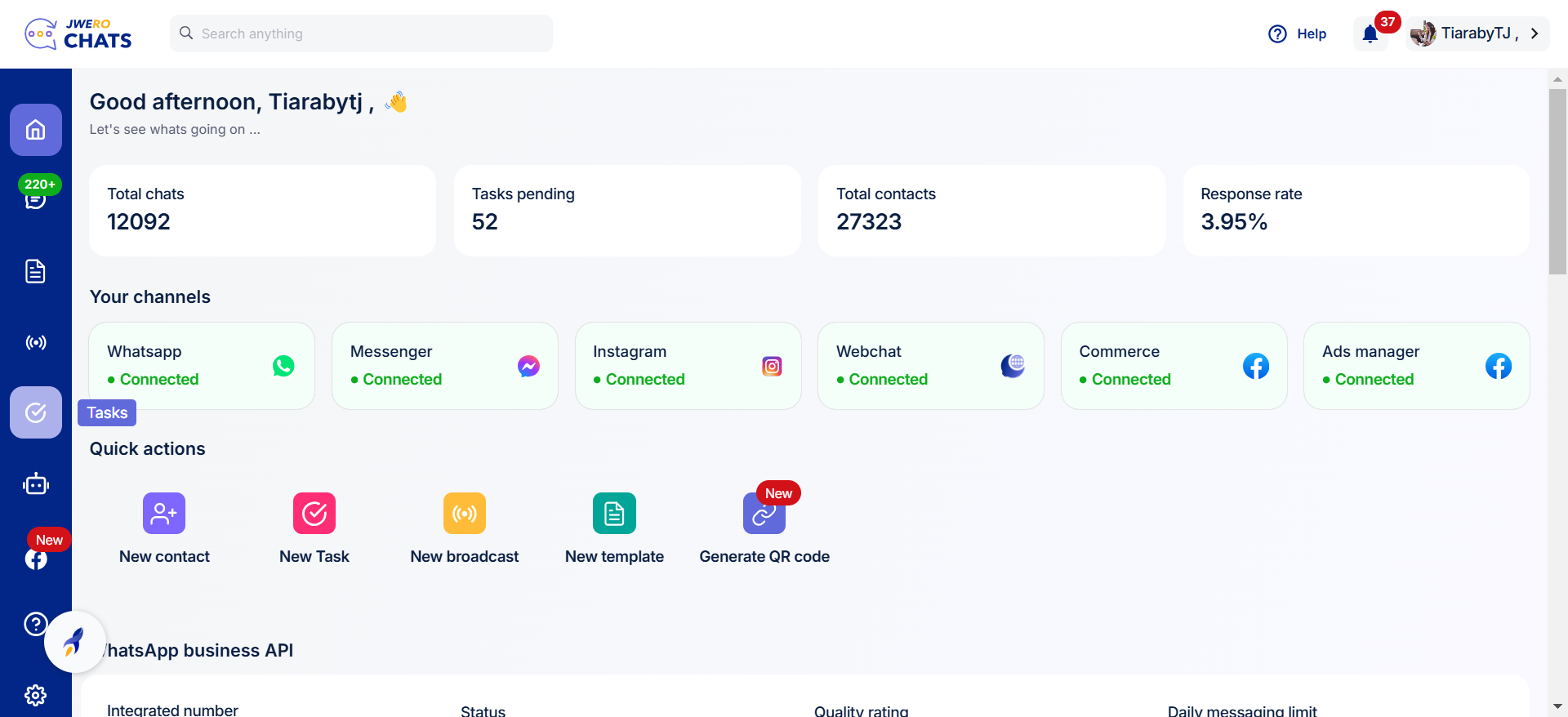
3. Log in To Jwero Chats
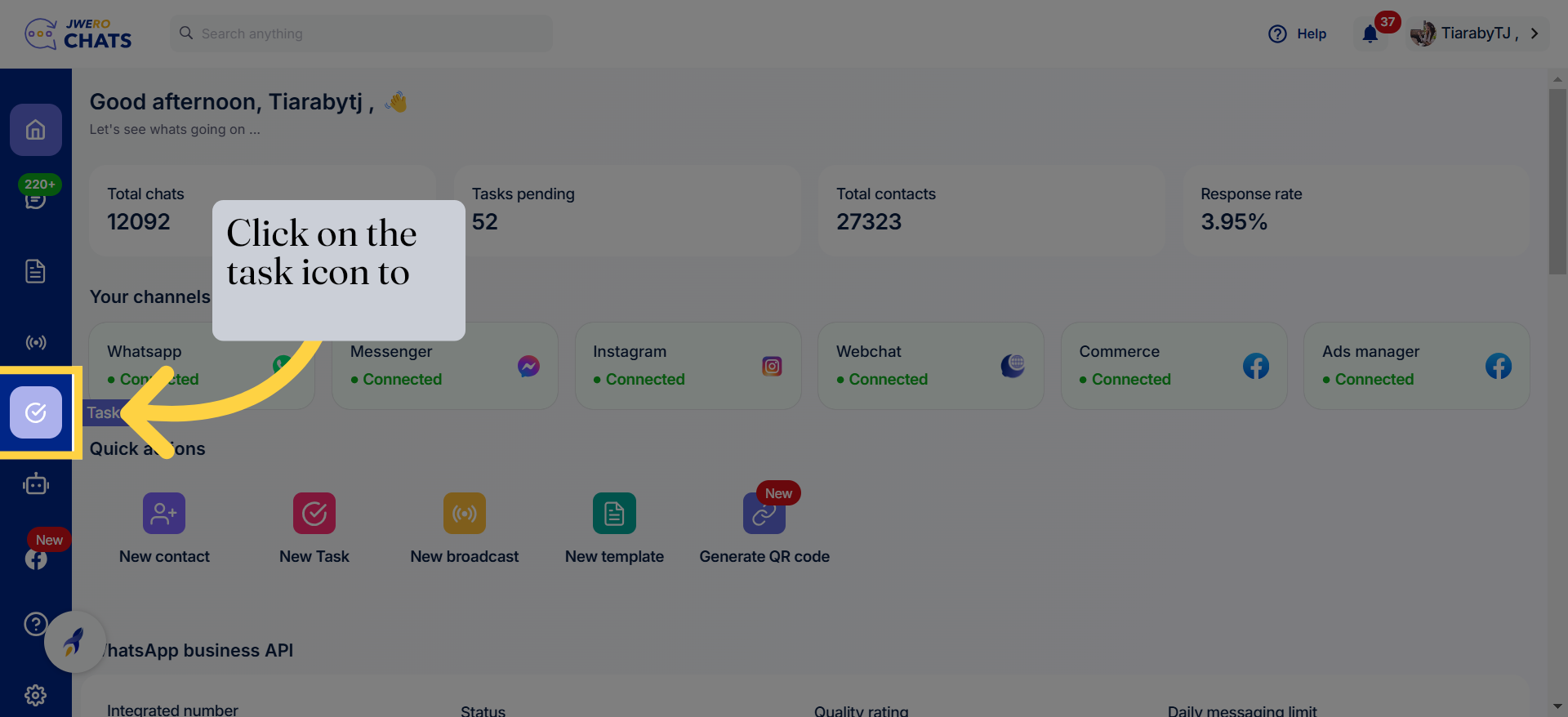
4. Click on the task icon to create a task.
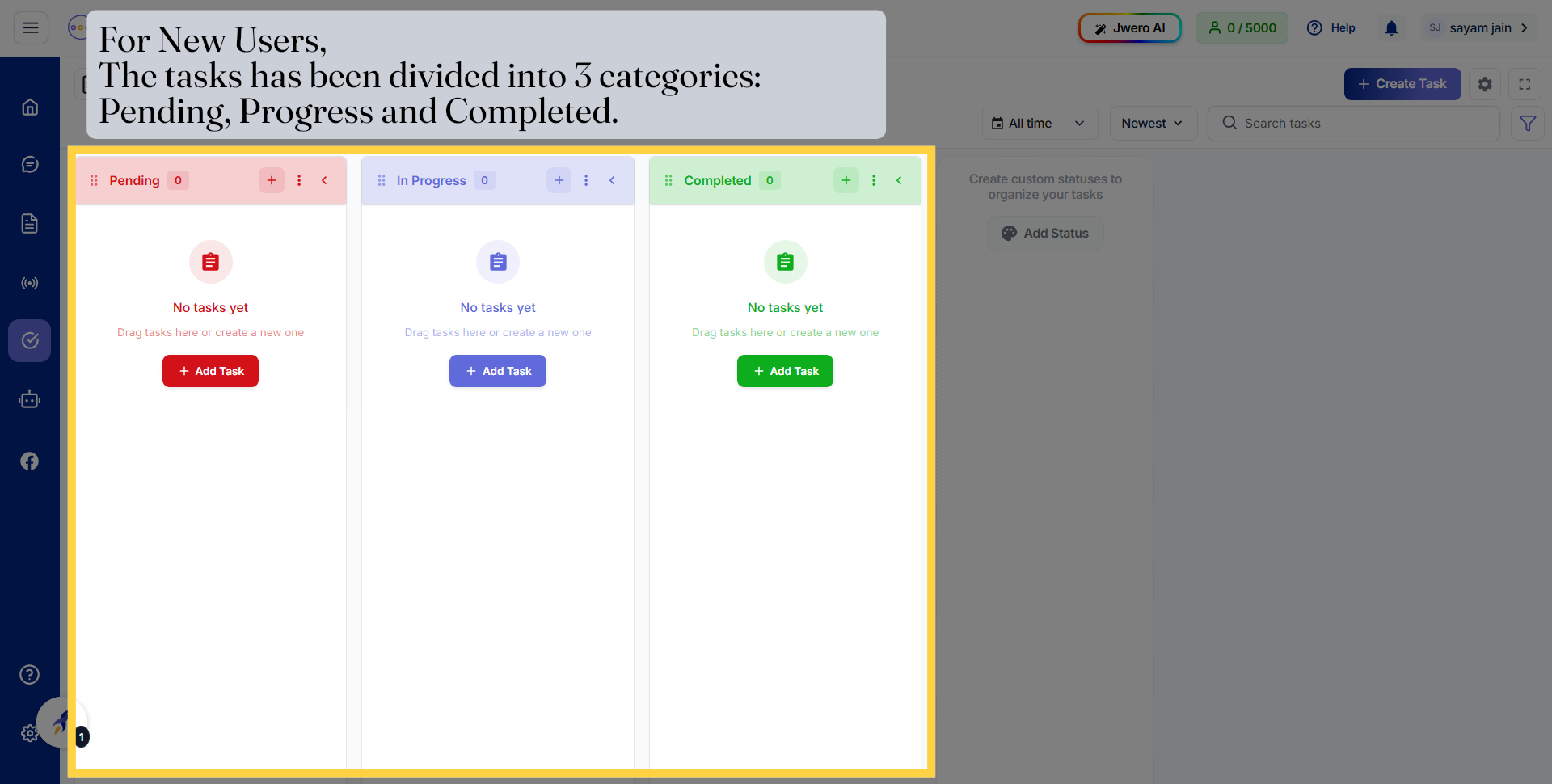
5. For New User Task Has Been Divided Into Three Category
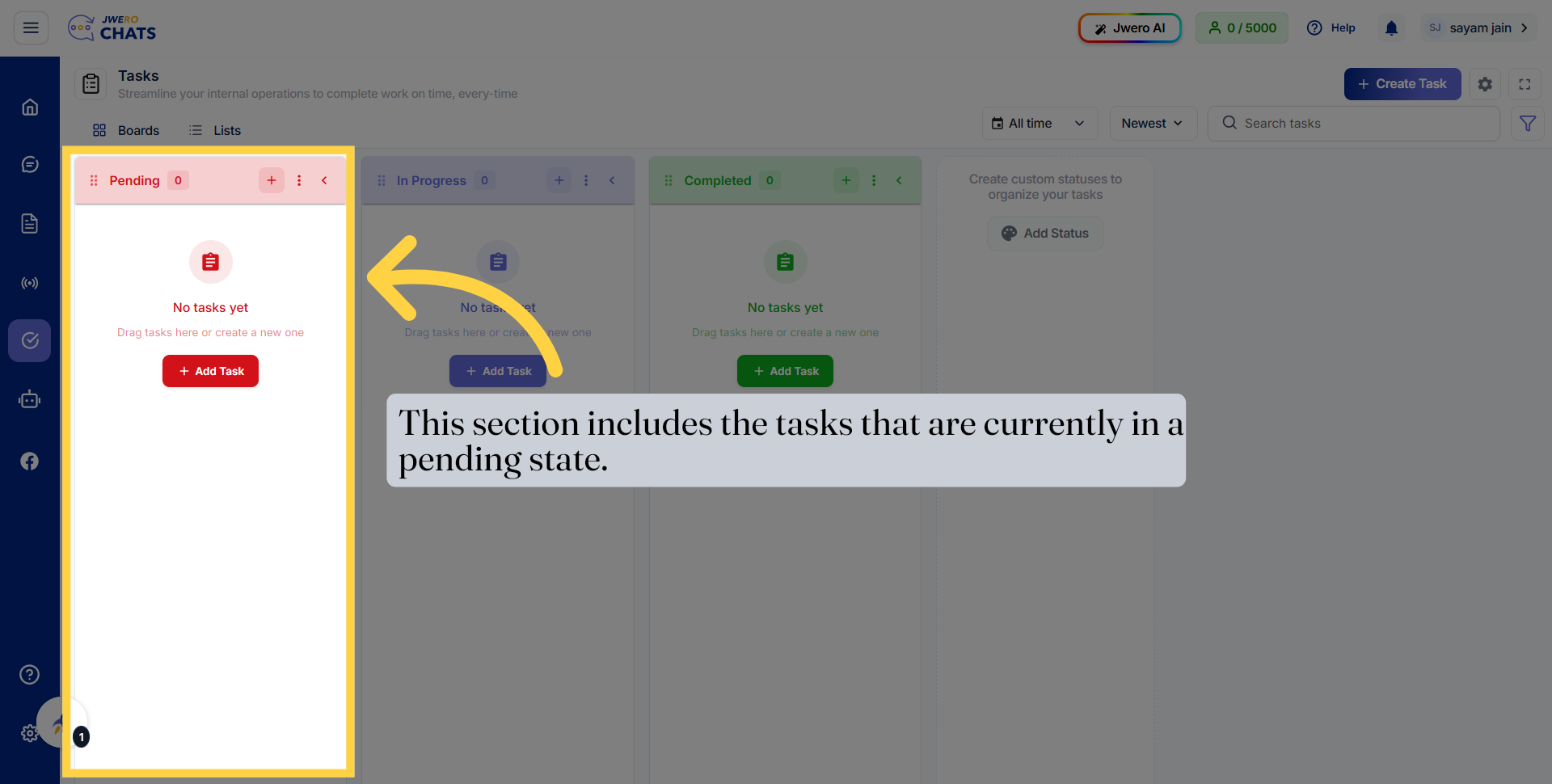
6. Pending Task Display That Task is in Pending Status
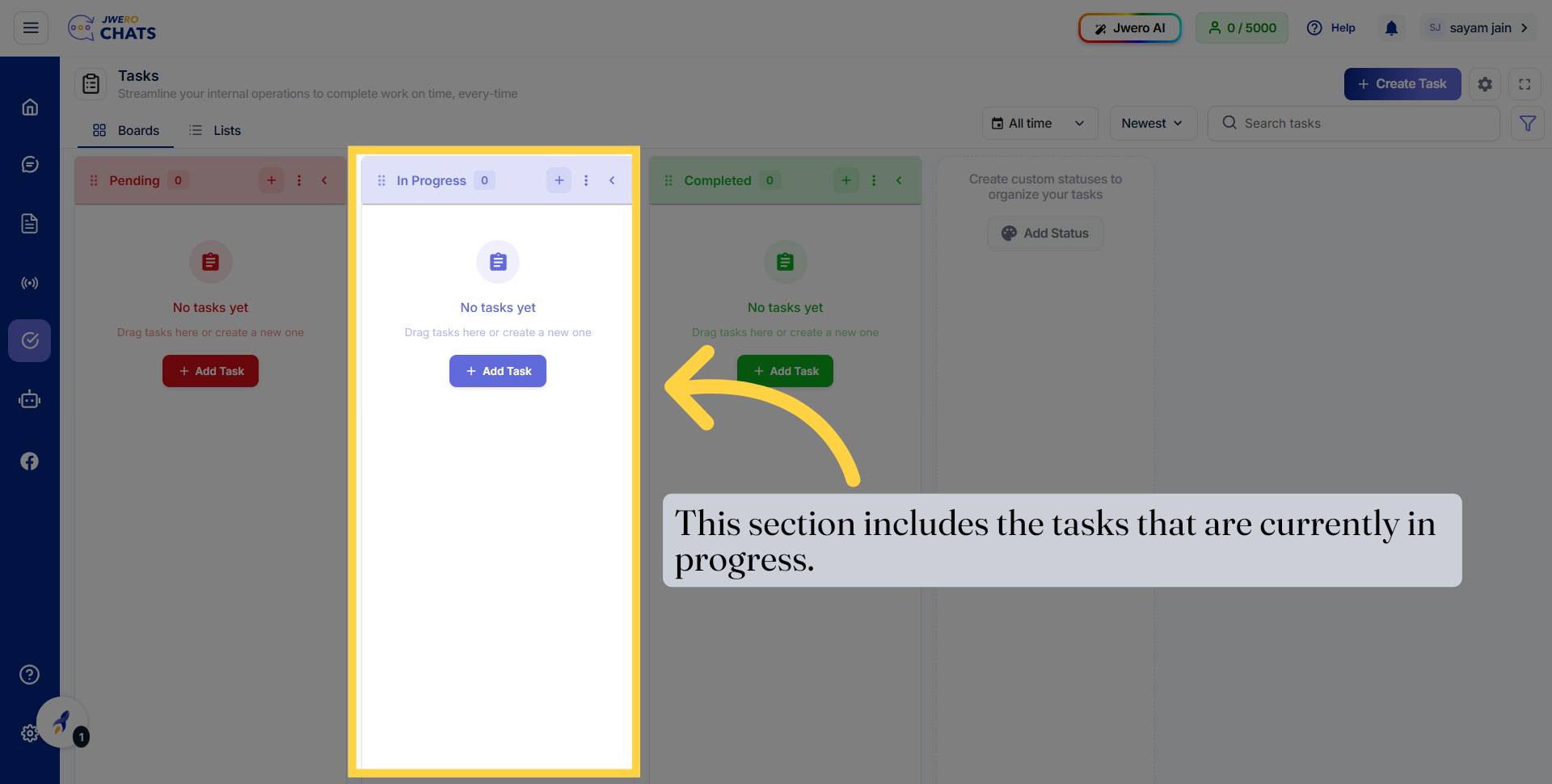
7. In Progress Task Display That Task is In Progress Status
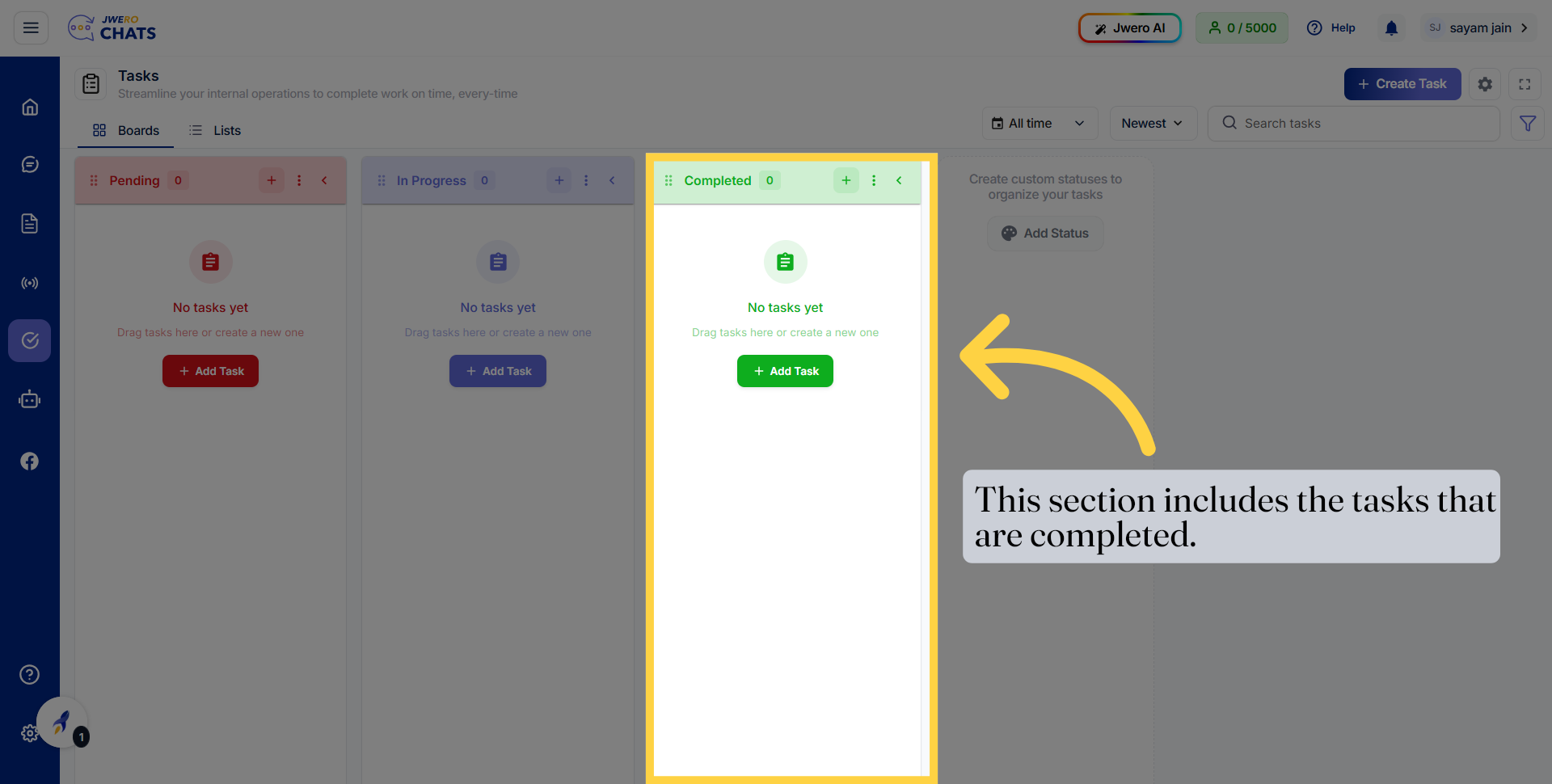
8. Completed task Display Task That Have Been Completed
9. You Can Create New Status (Category) According To Your Work Flow
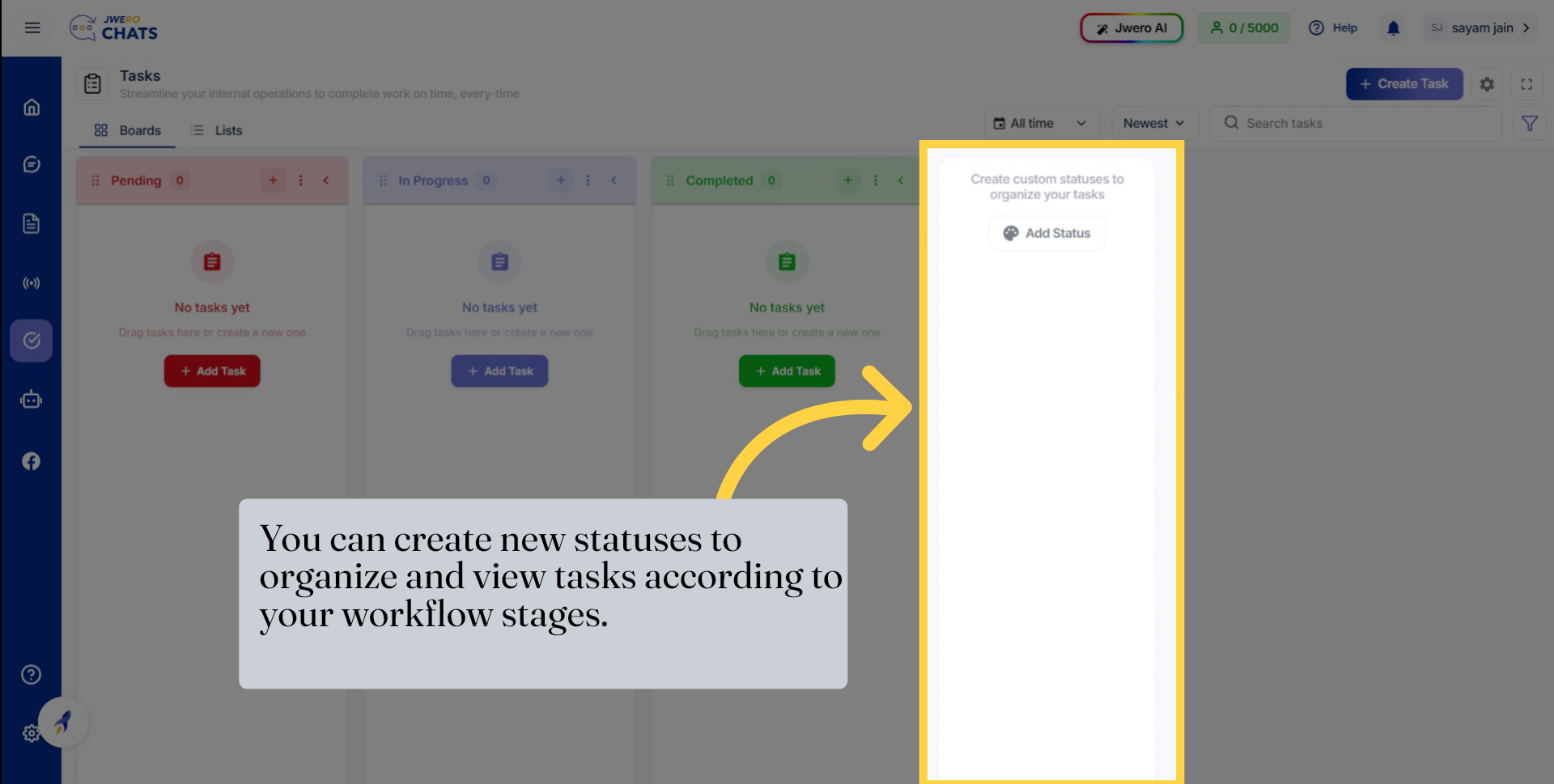
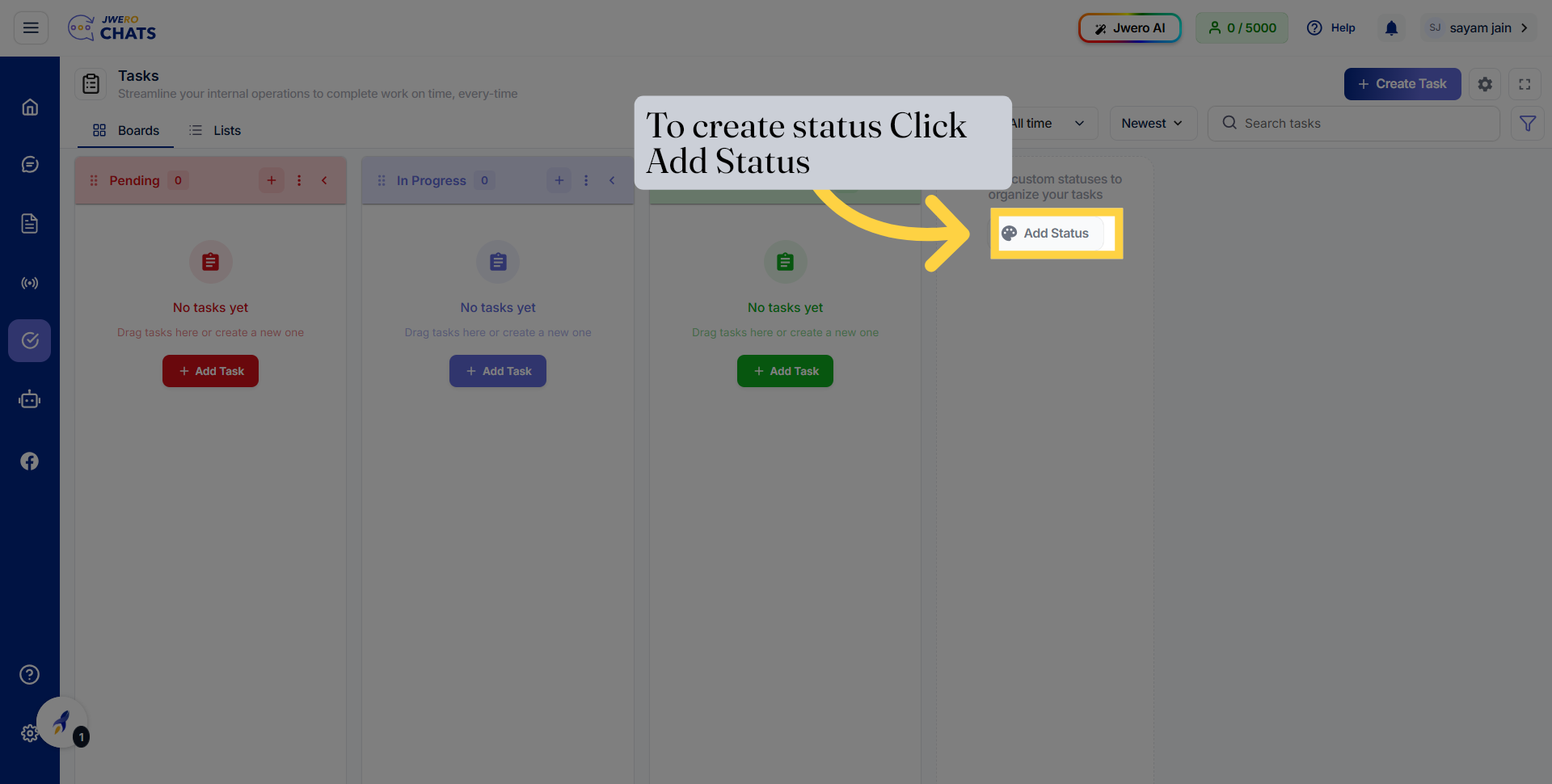
10. Click On Add New Status To Create New
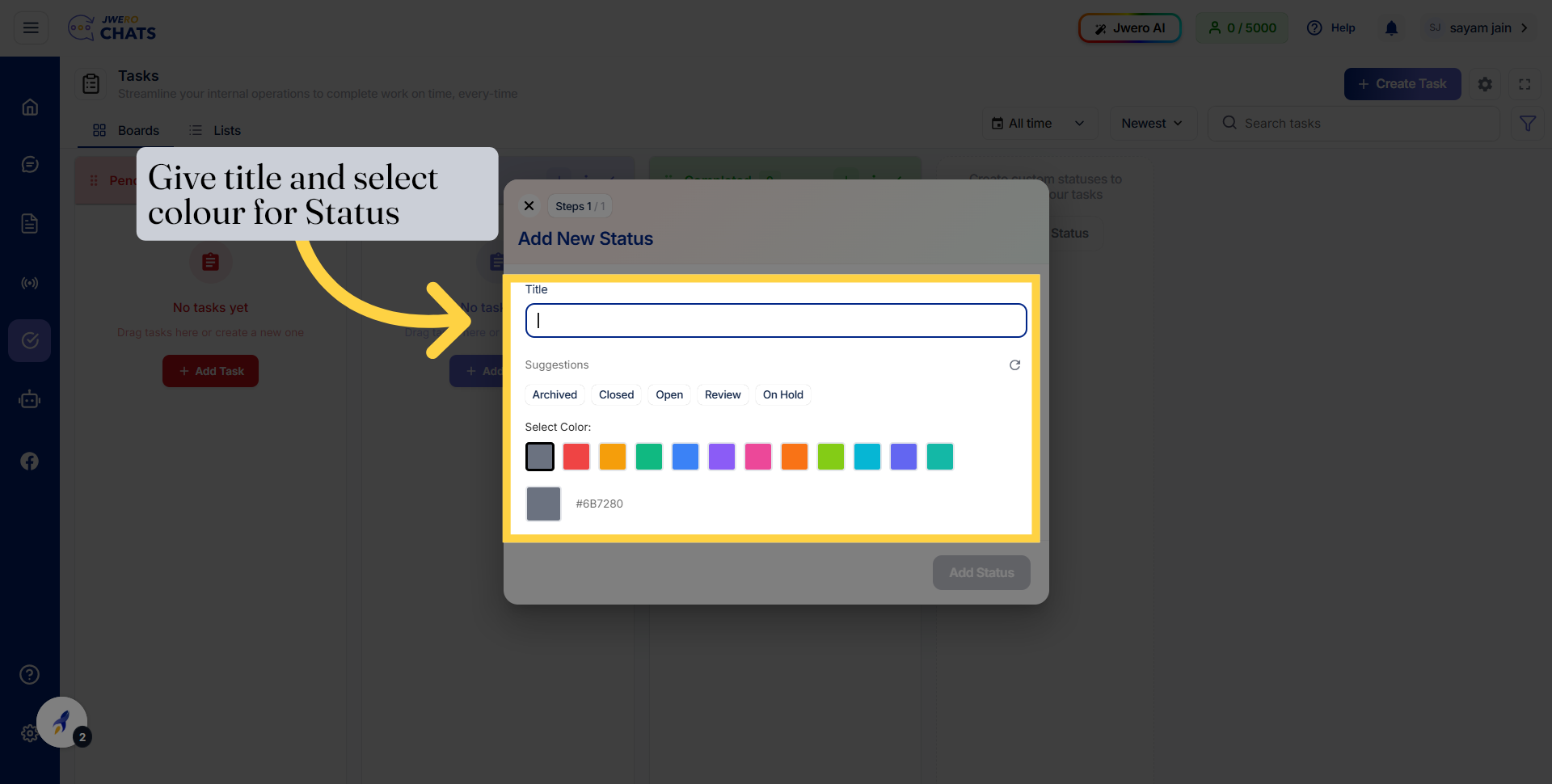
11. Give Status Title And Select Colour
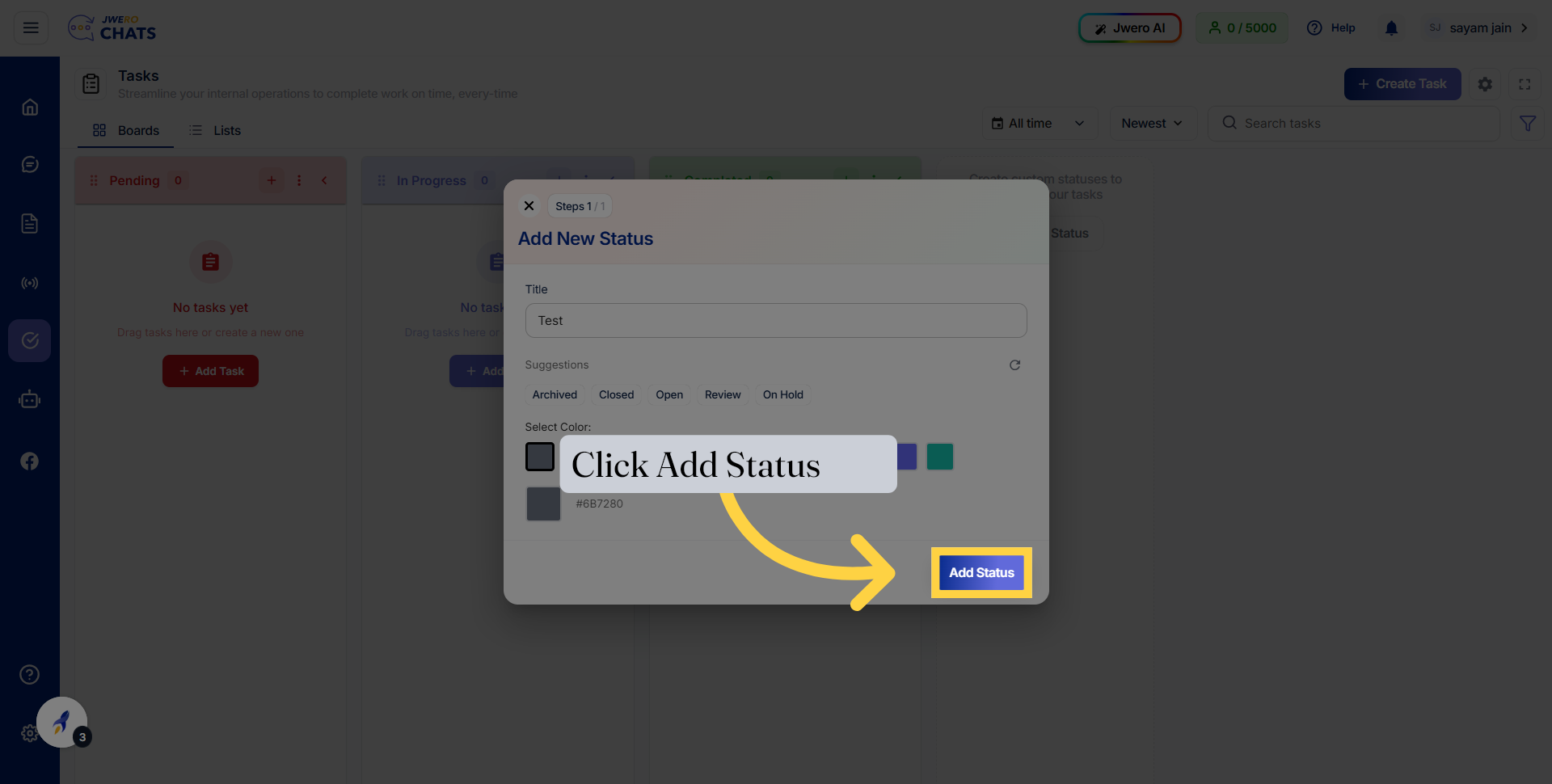
12. Confirm Status Addition
13. You Can See New Status Have Been Created
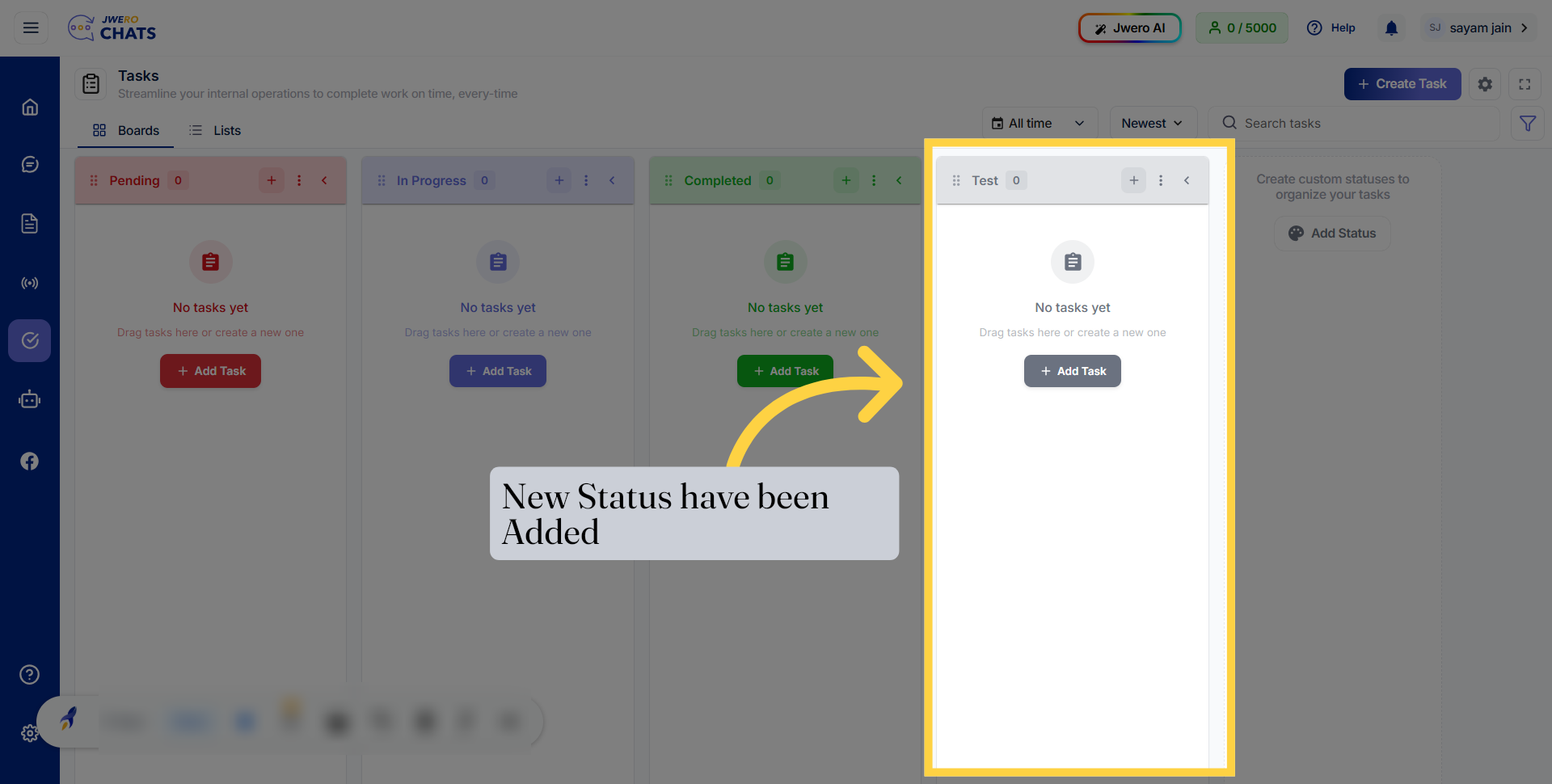
14. To Add New Task Click At "Create Task"
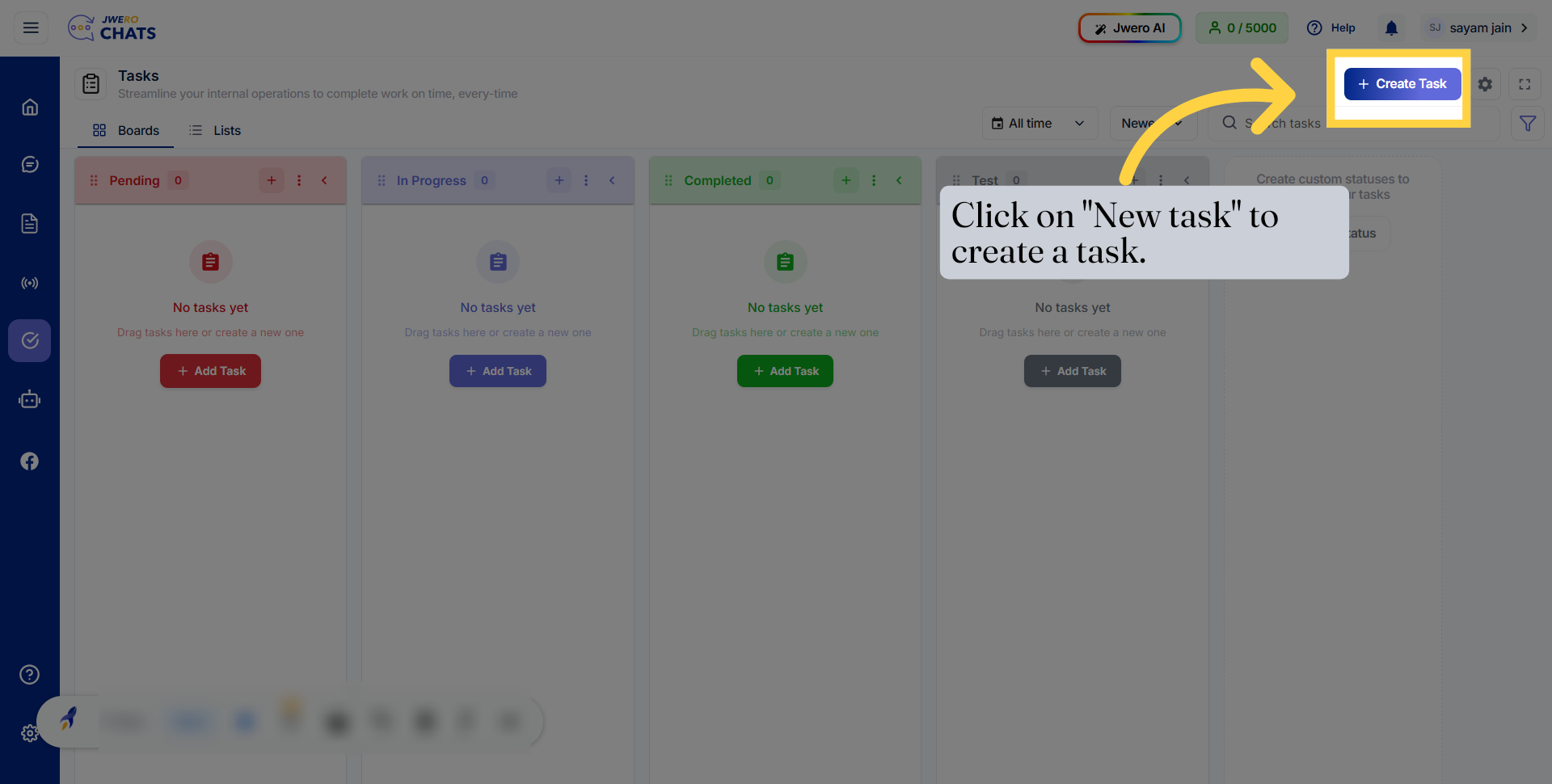
15. Give Task Title That Explain Purpose
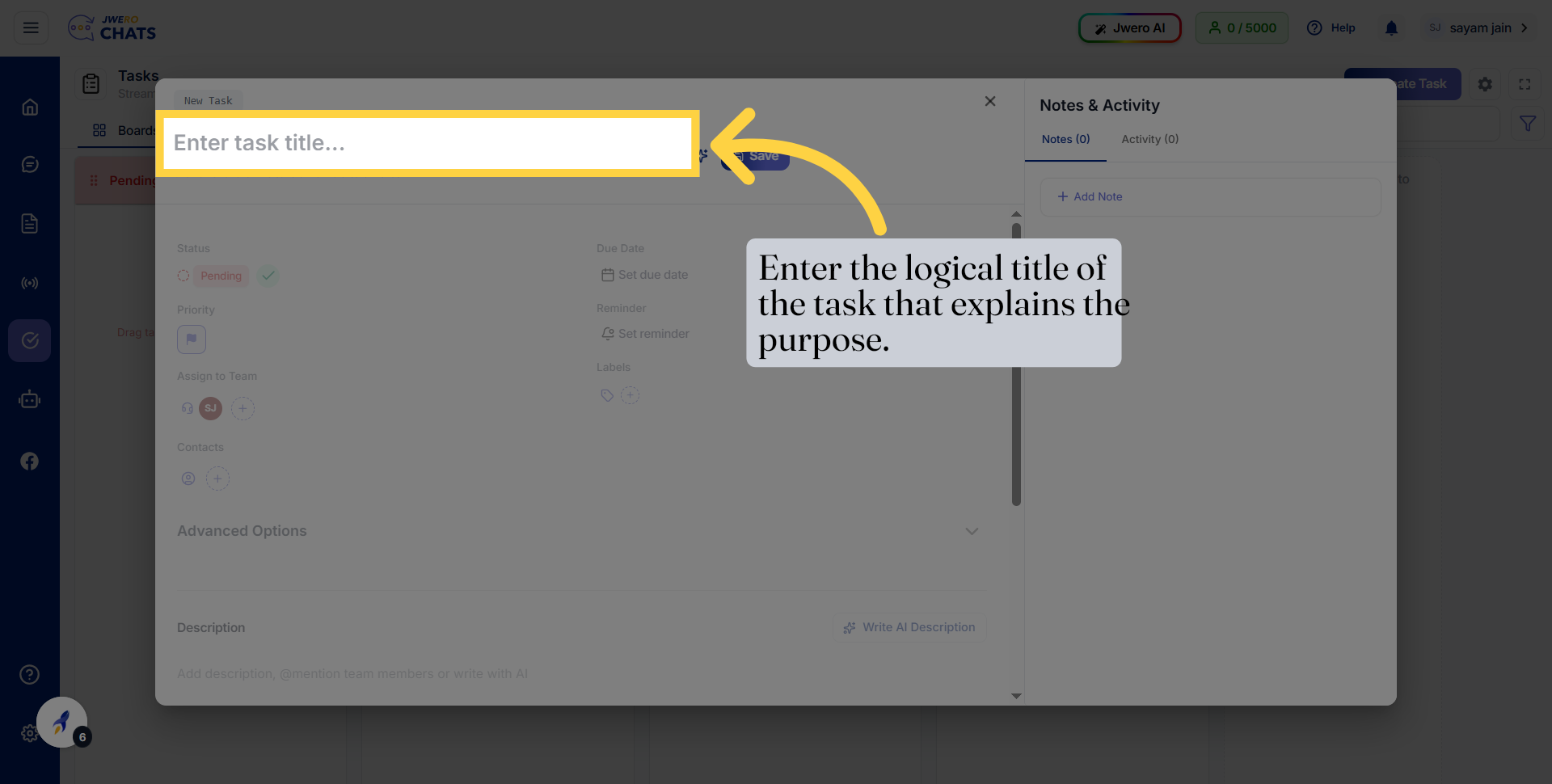
16. Save New Task Title To Proceed Ahead
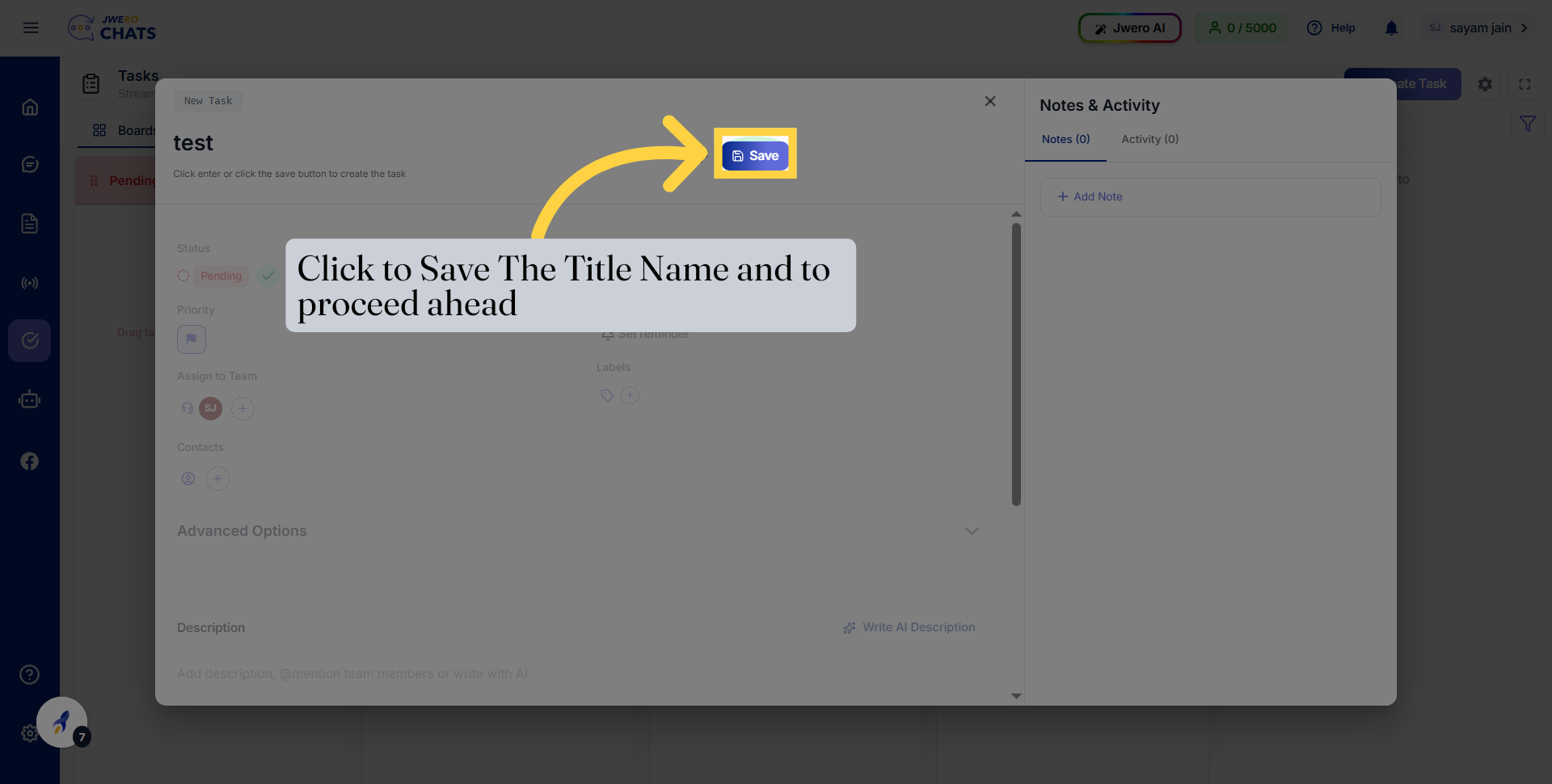
17. Open Status Dropdown
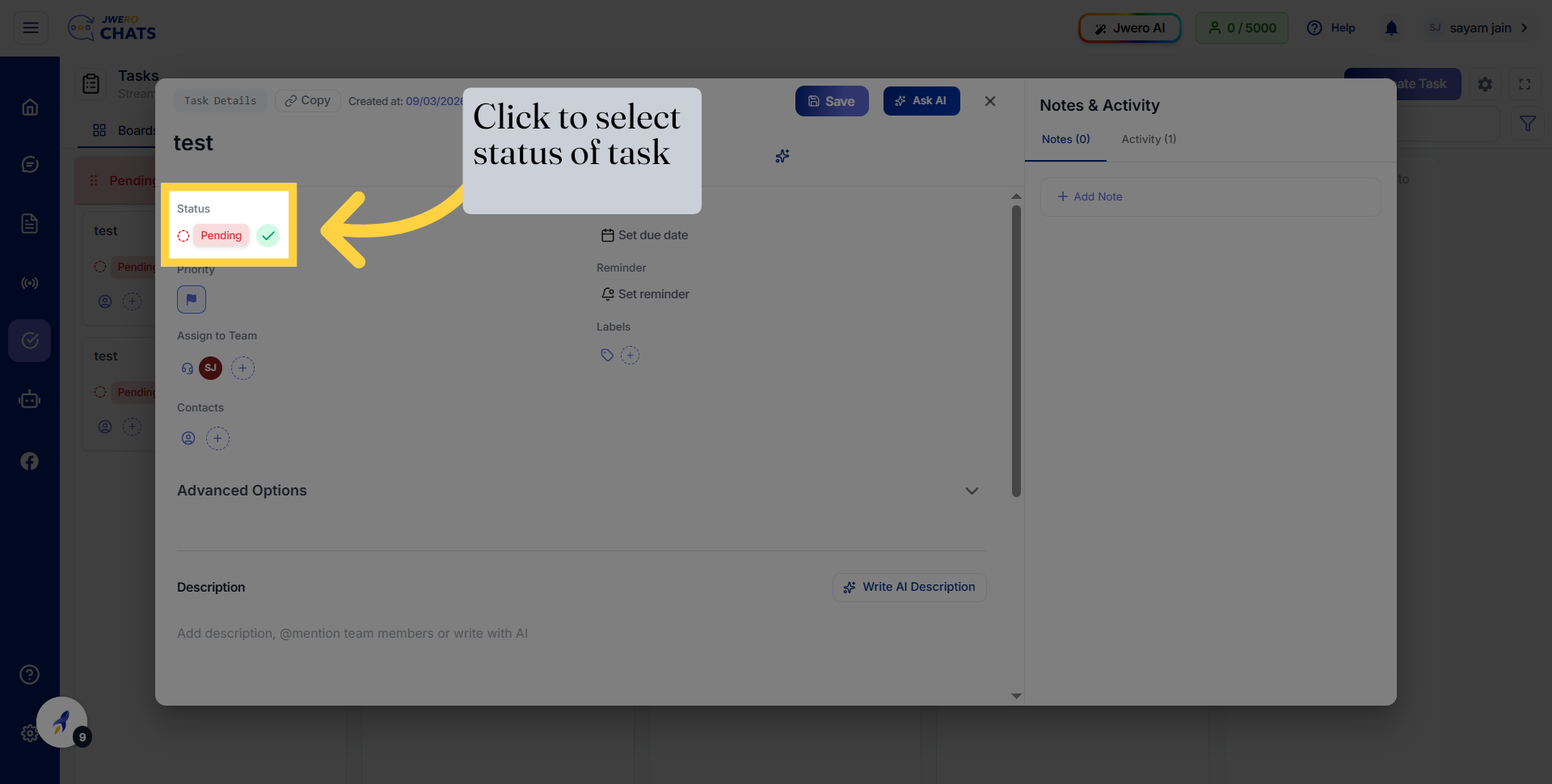
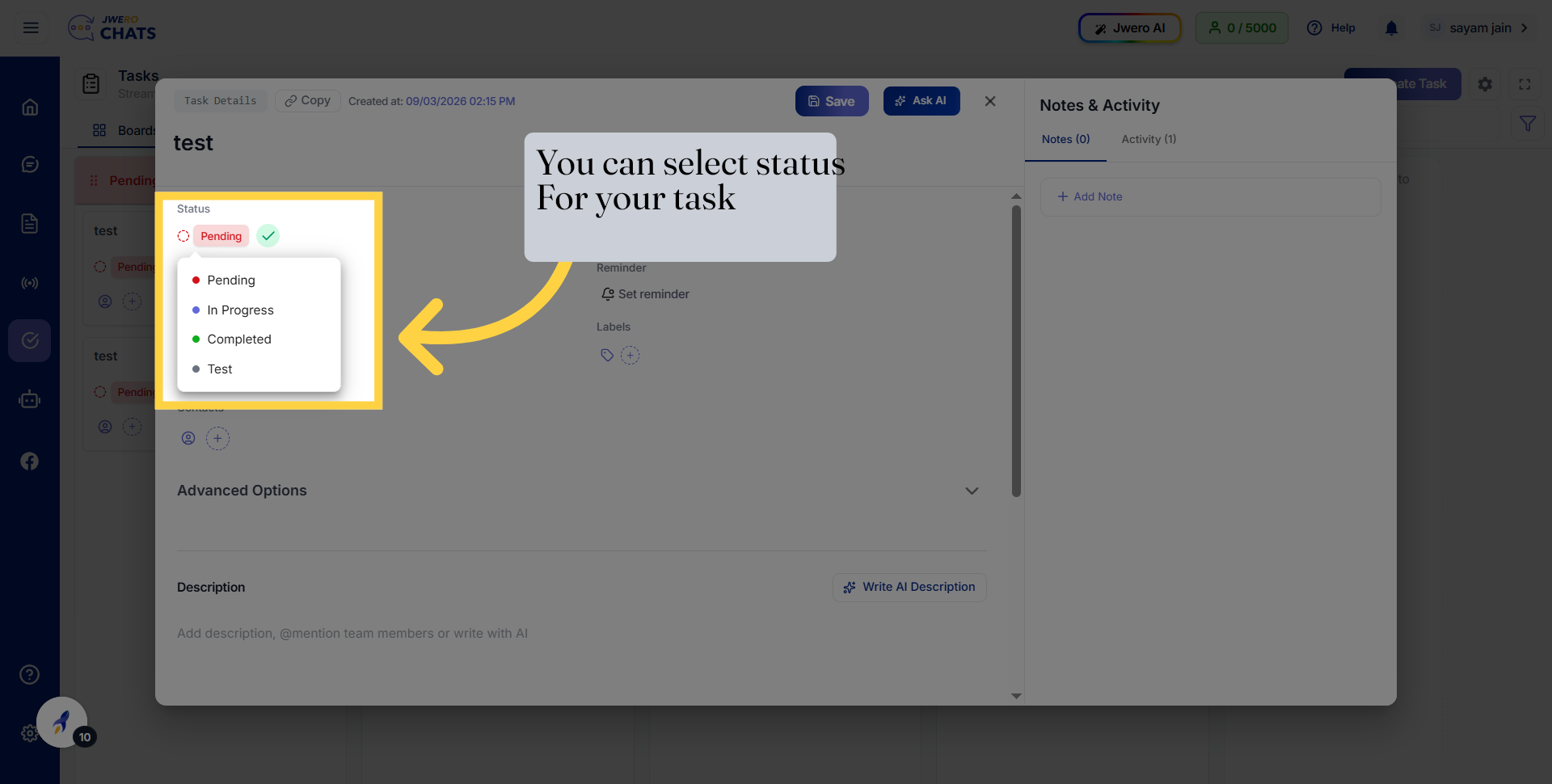
18. Access and select Status Options
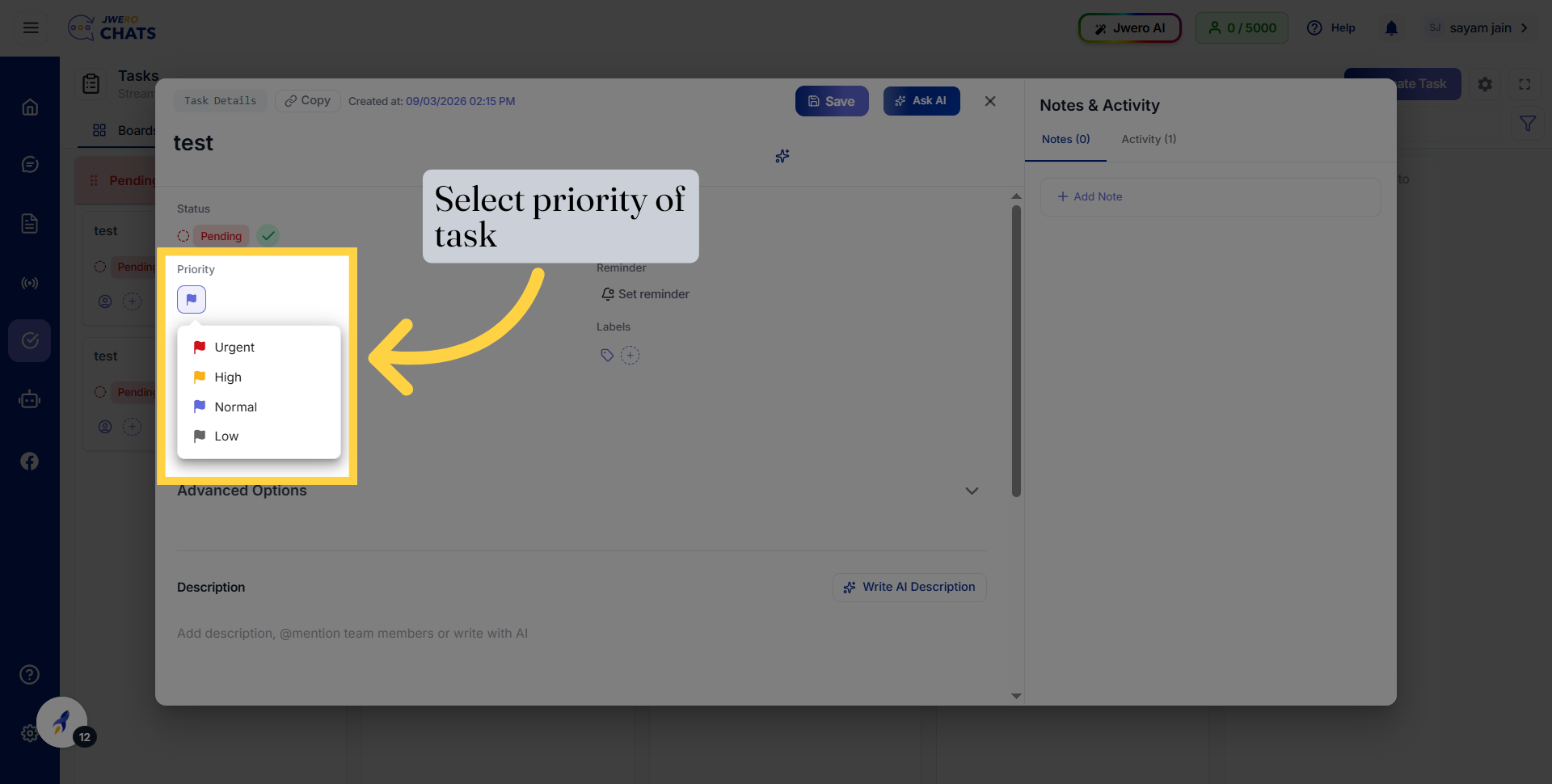
19. Select Priority of task
20. Assign Task To Team Members
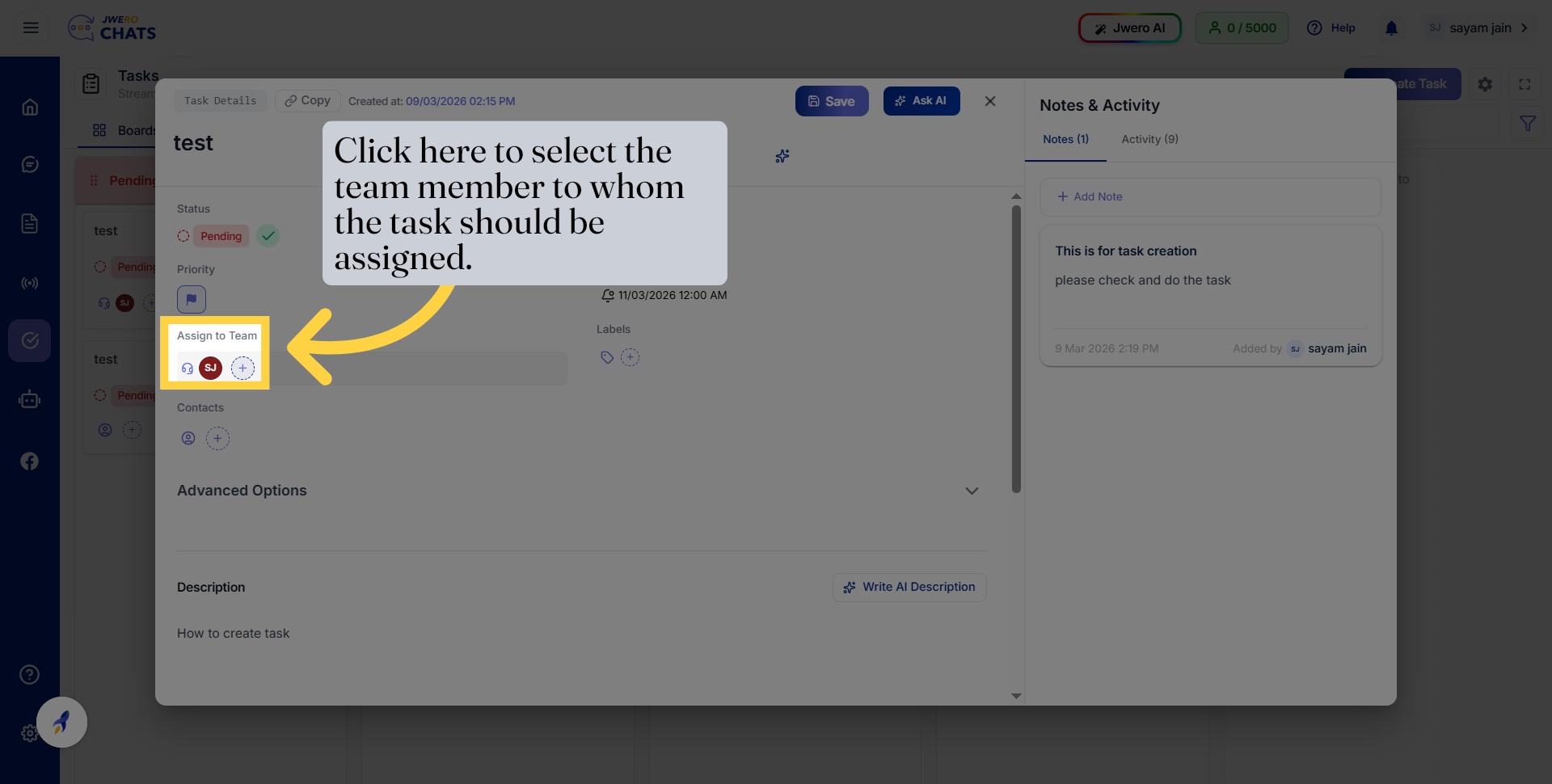
21. You Can Assign Task to Multiple Team Member
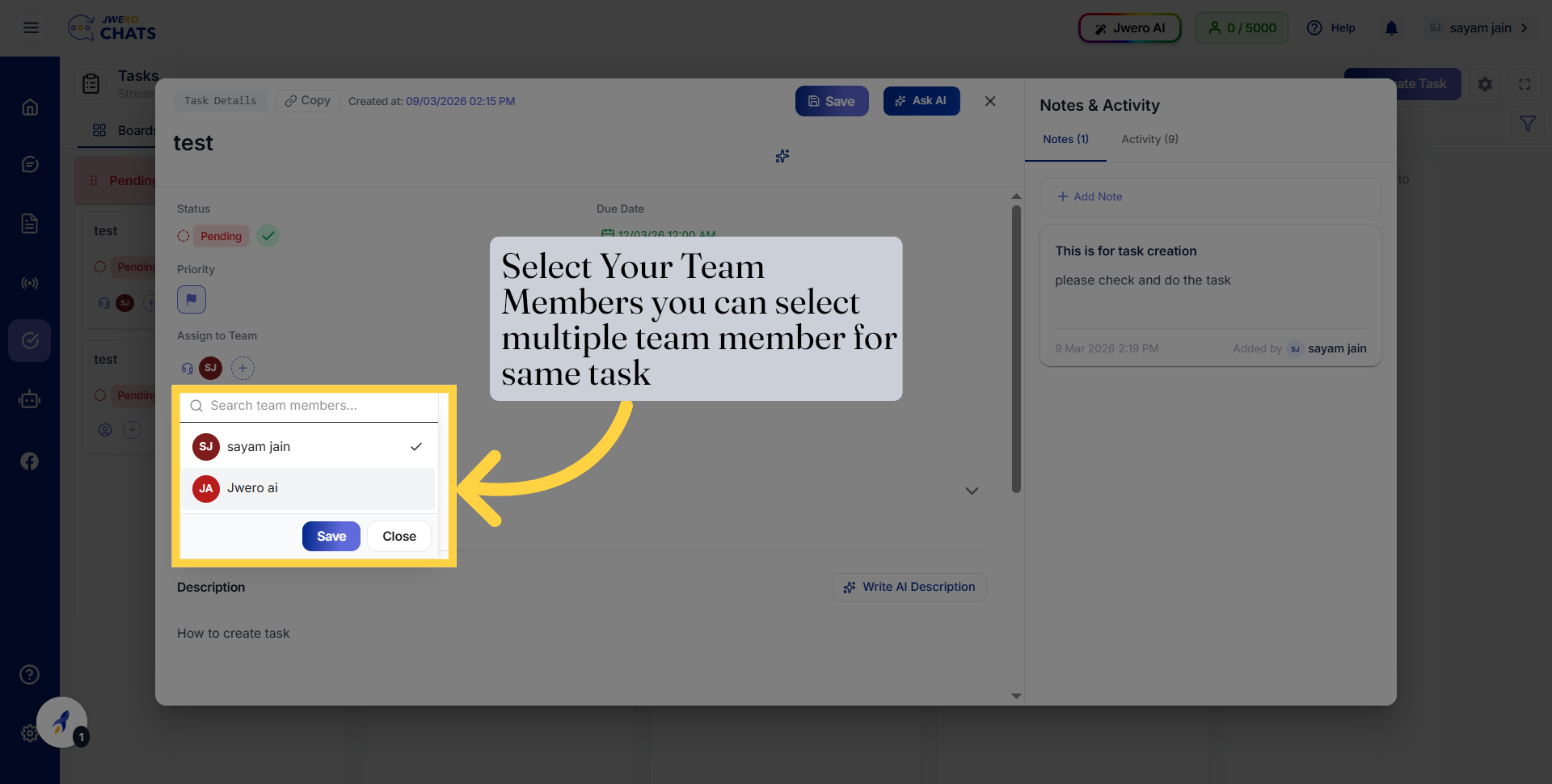
22. Save To Proceed Ahead
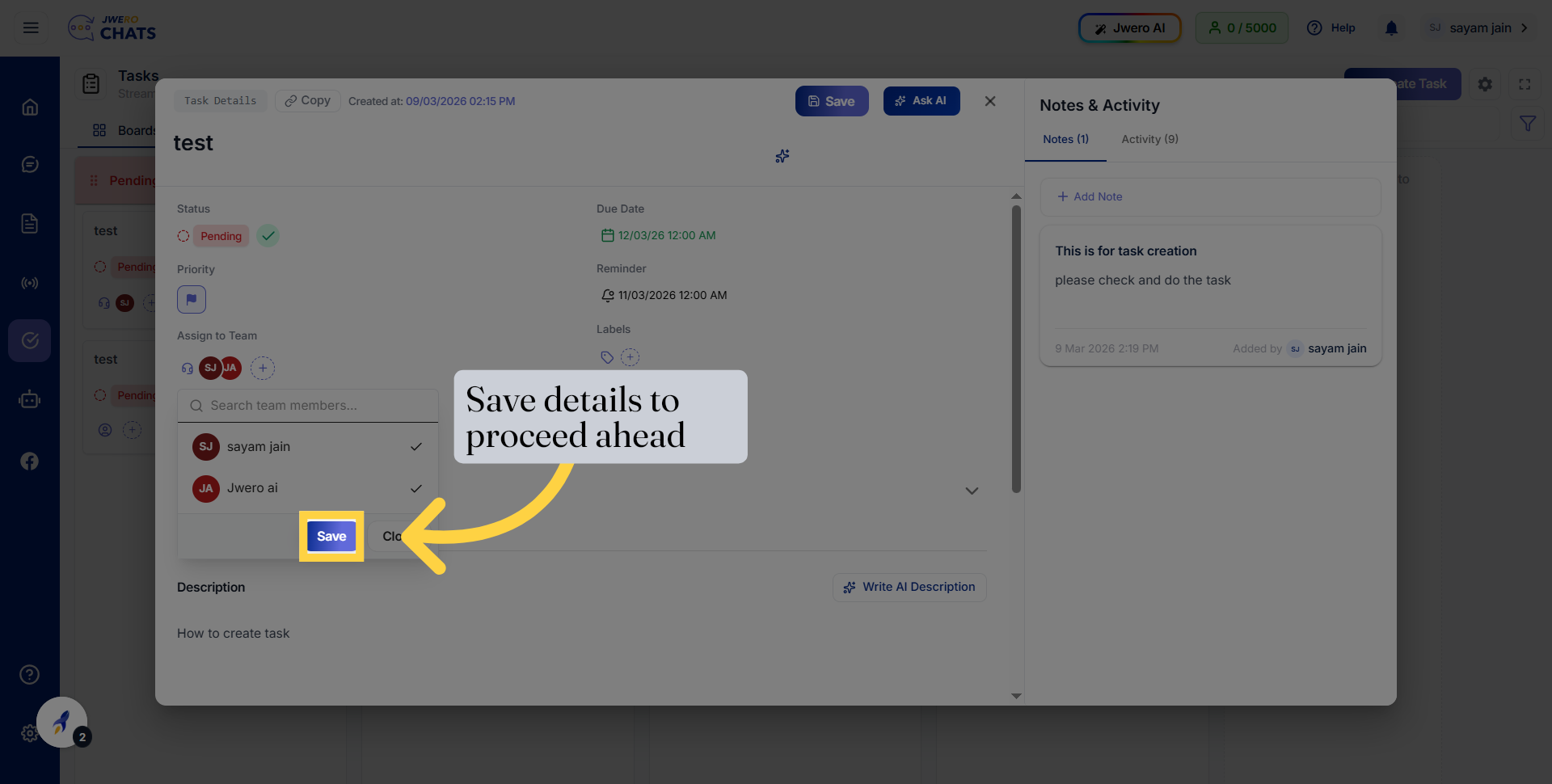
23. Select Contact for Whom Task Have Been Created
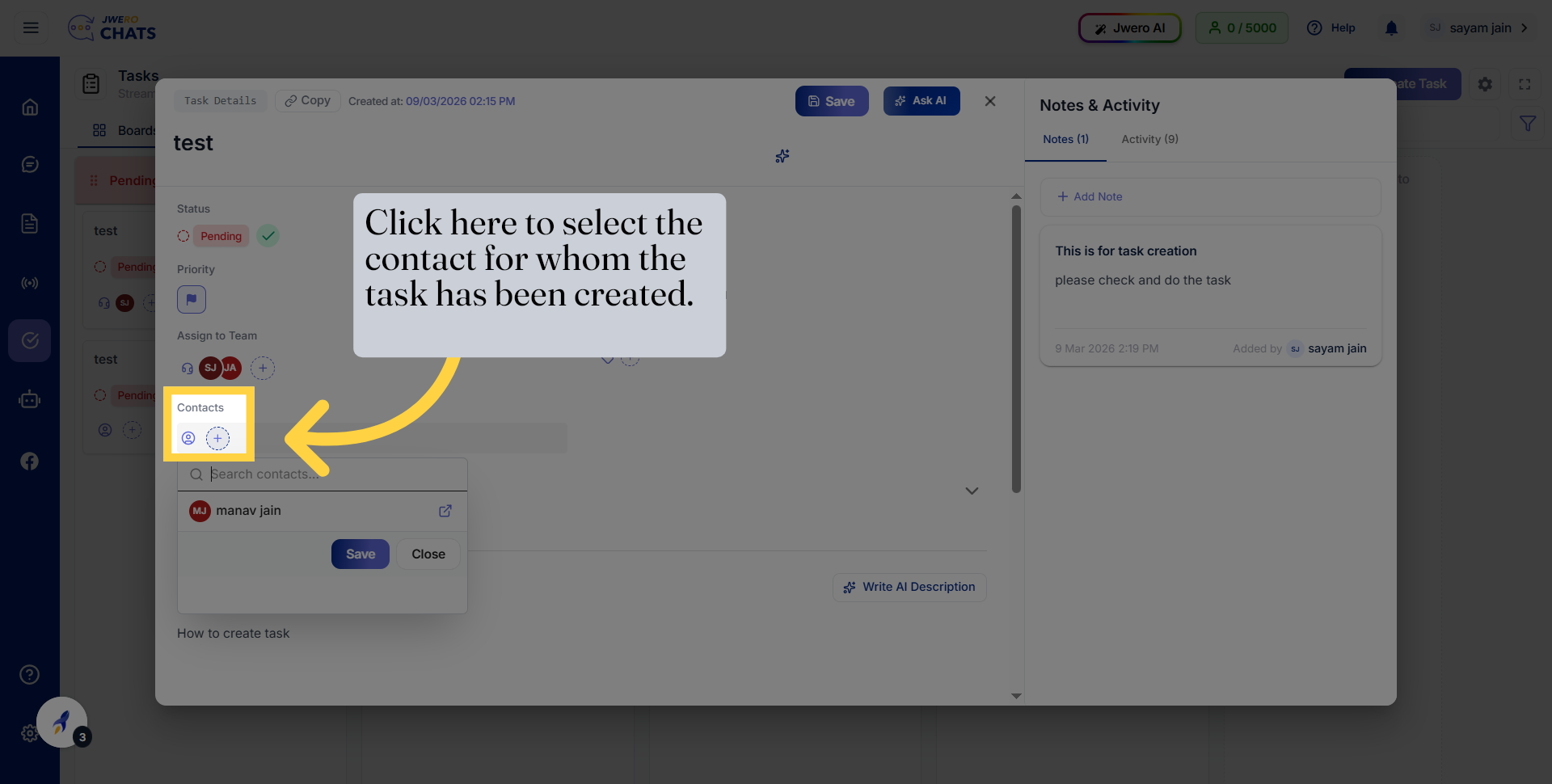
24. Choose Contact Profile
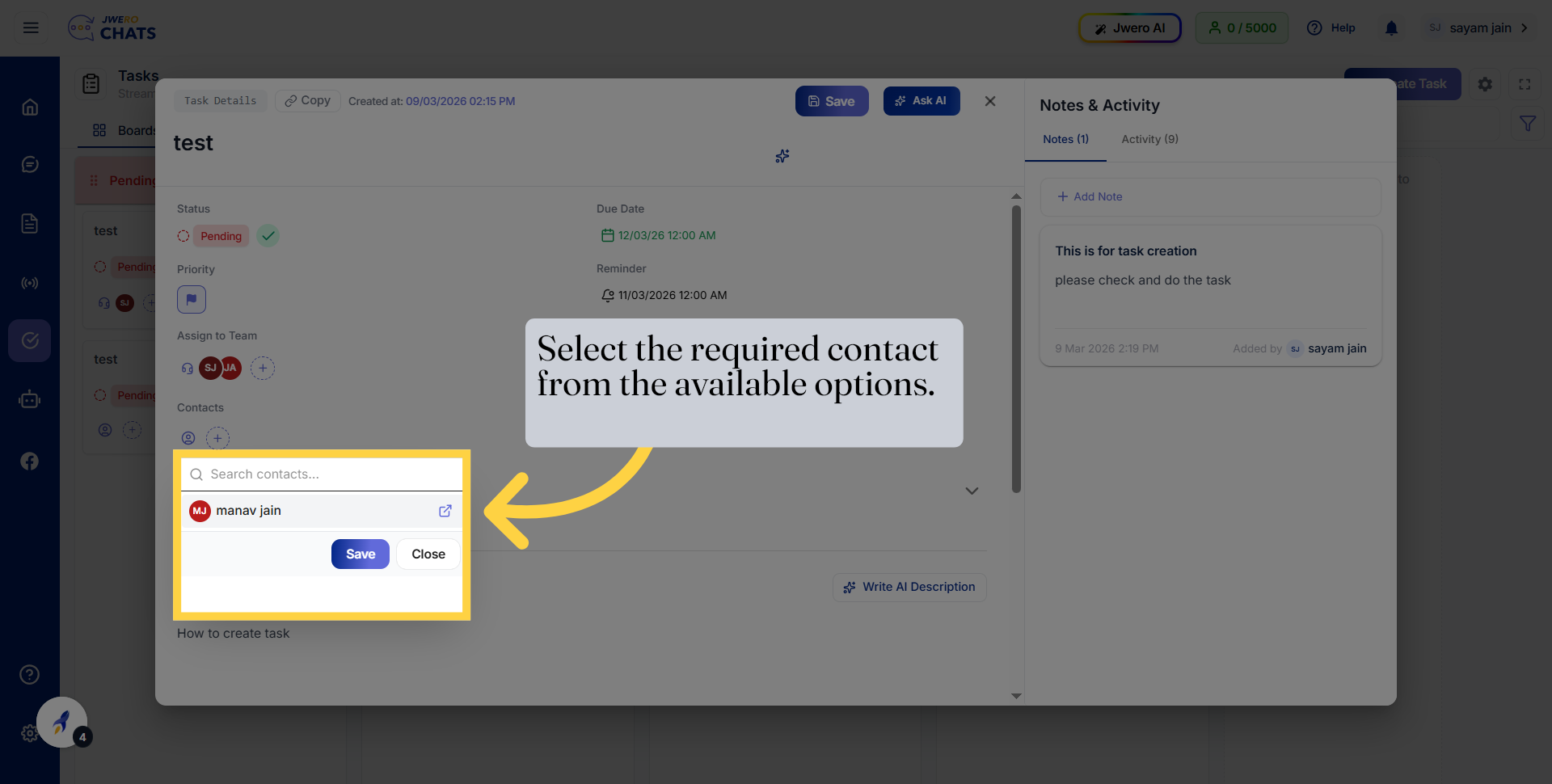
25. Save To Proceed Ahead
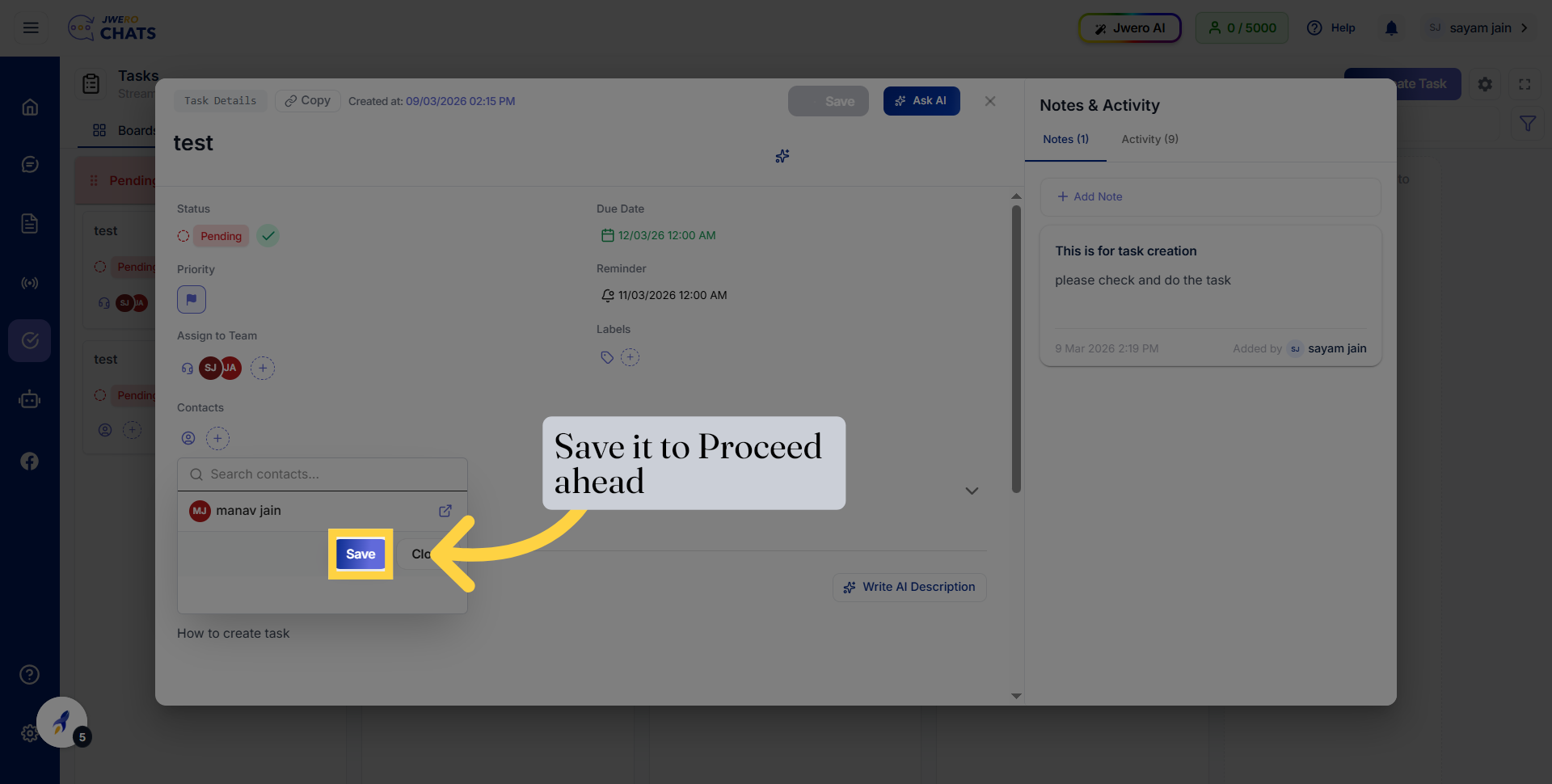
26. Set Task Due Date
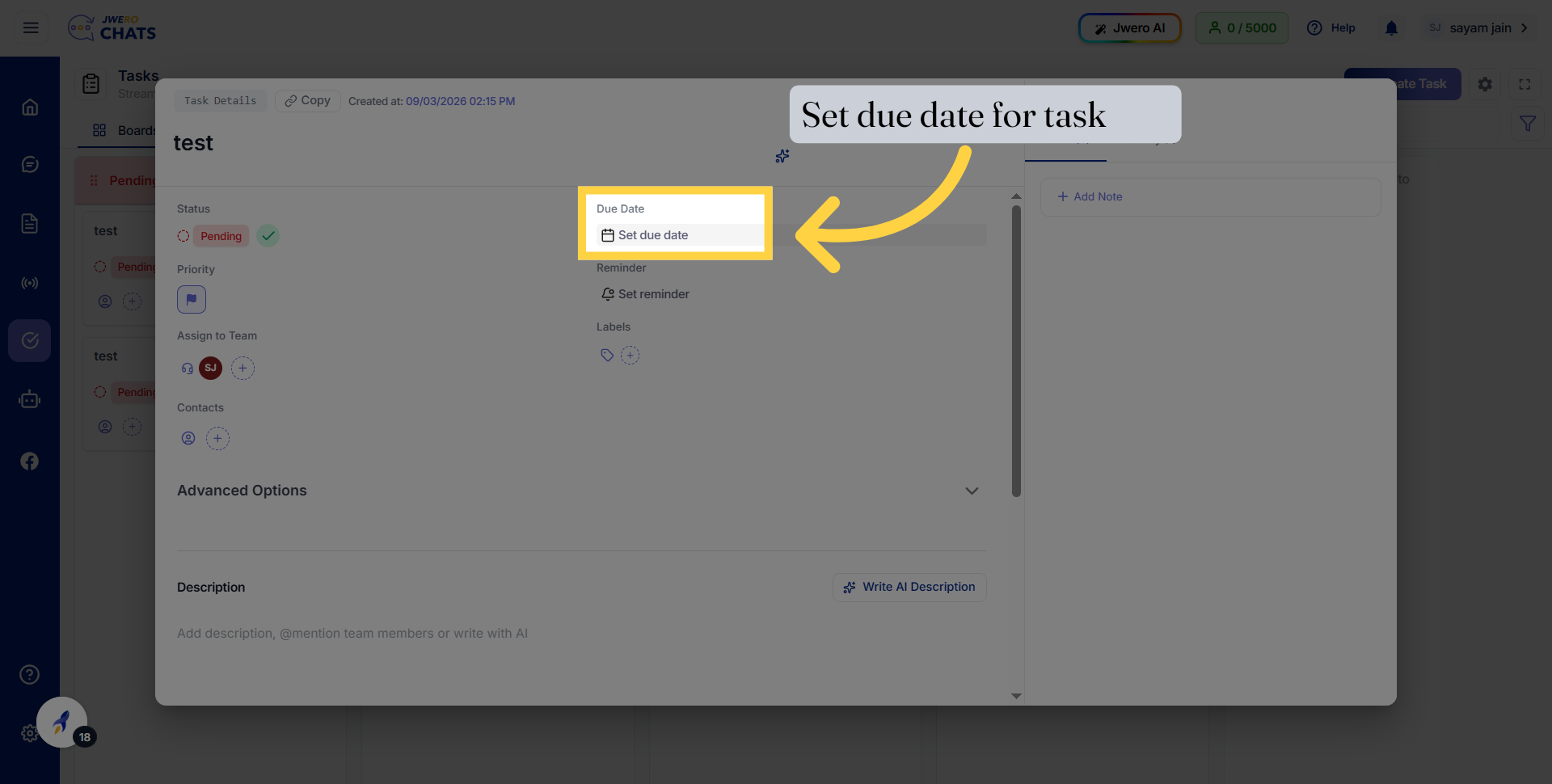
27. Choose Due Date Duration
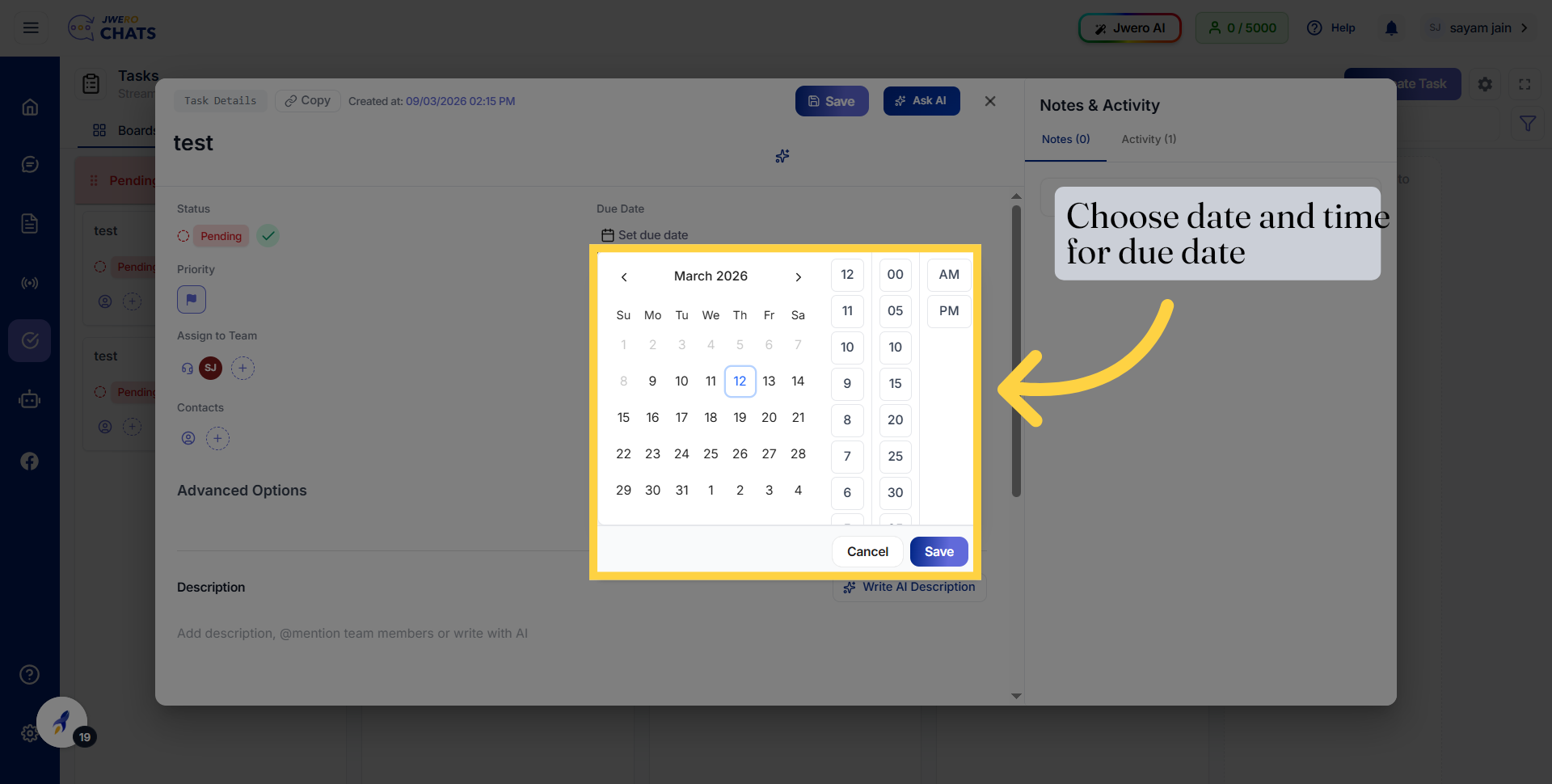
28. Save Due Date To Proceed Ahead
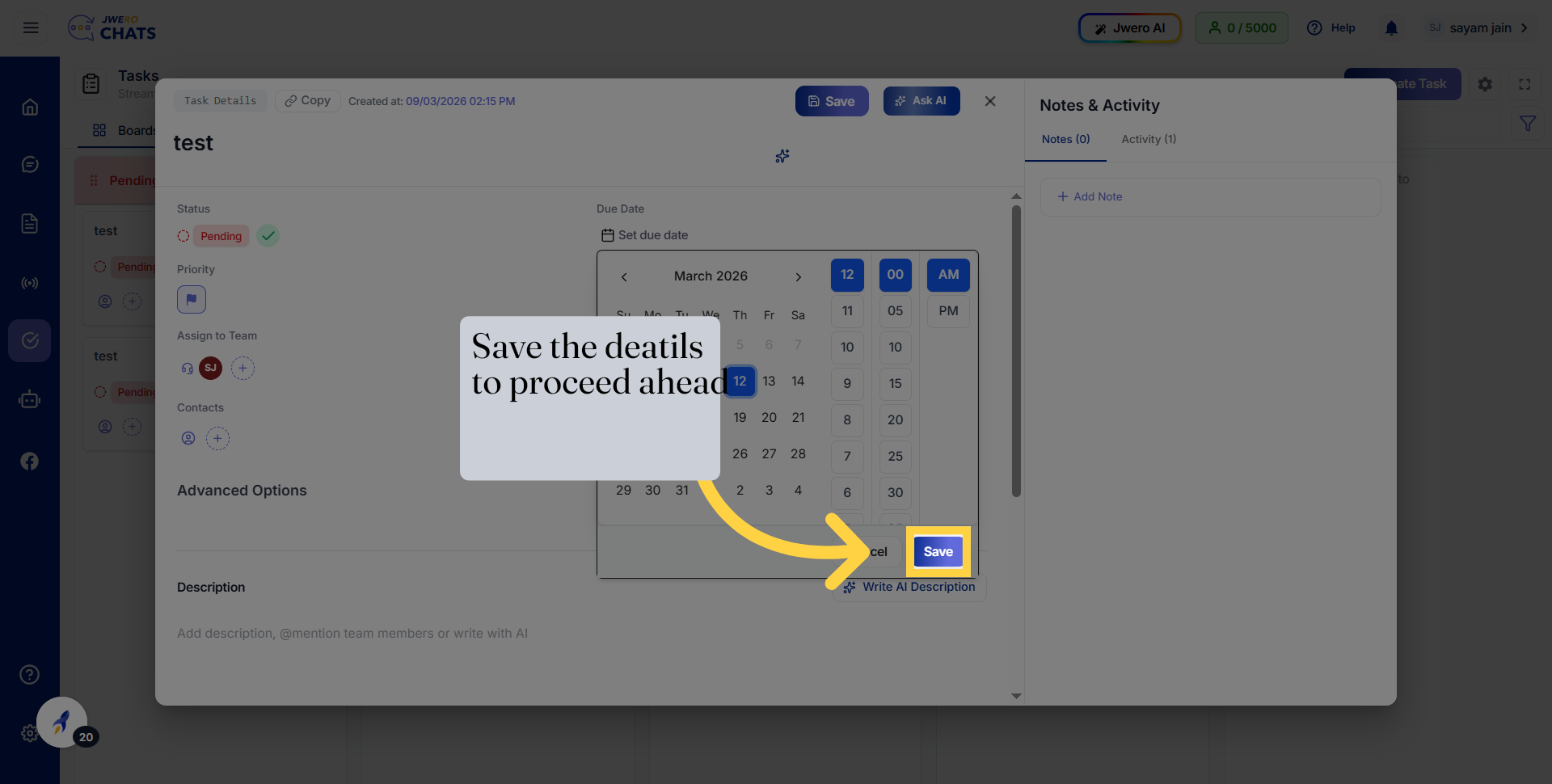
29. Set Task Reminder
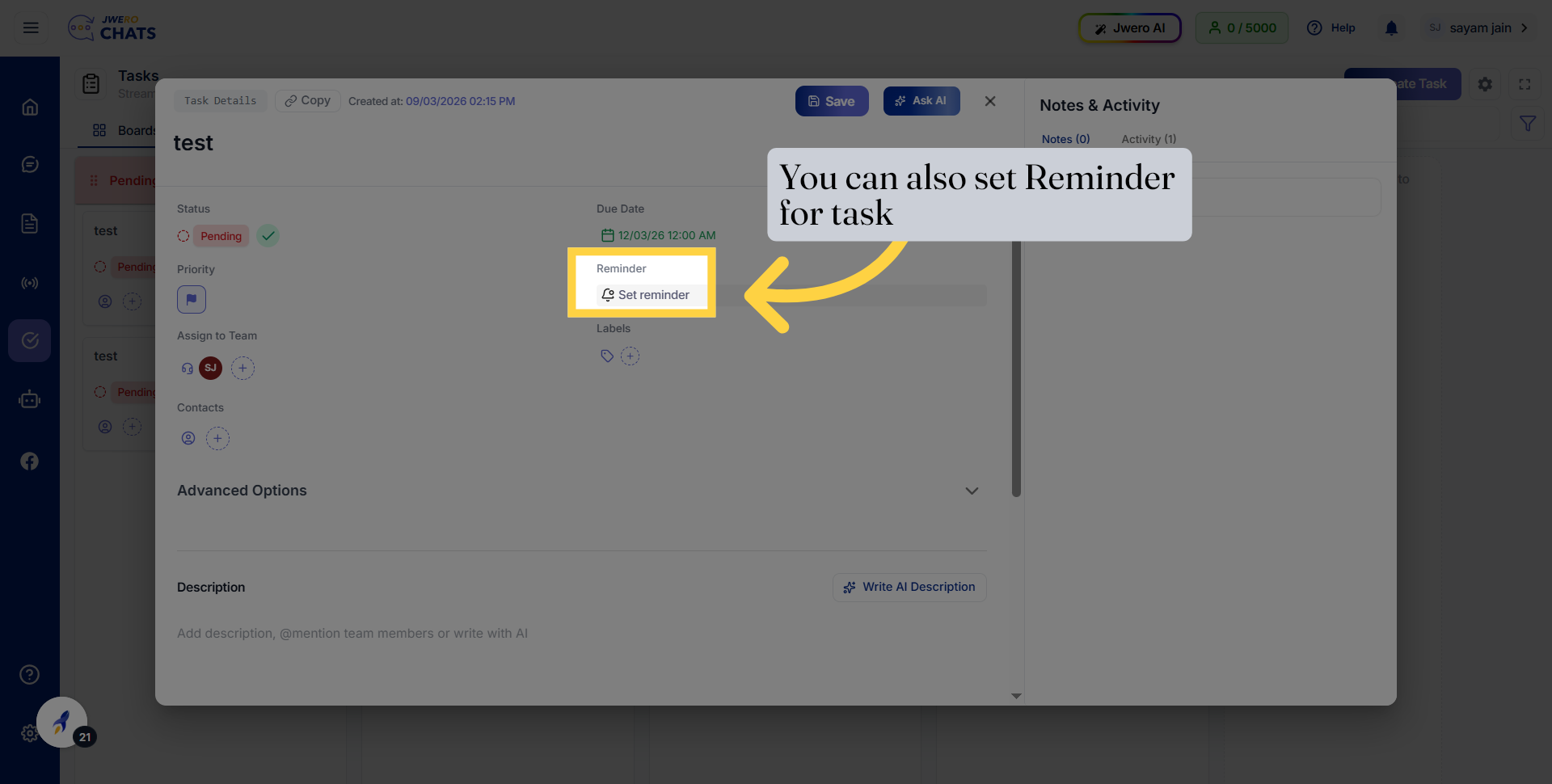
30. Select Reminder Date and Duration
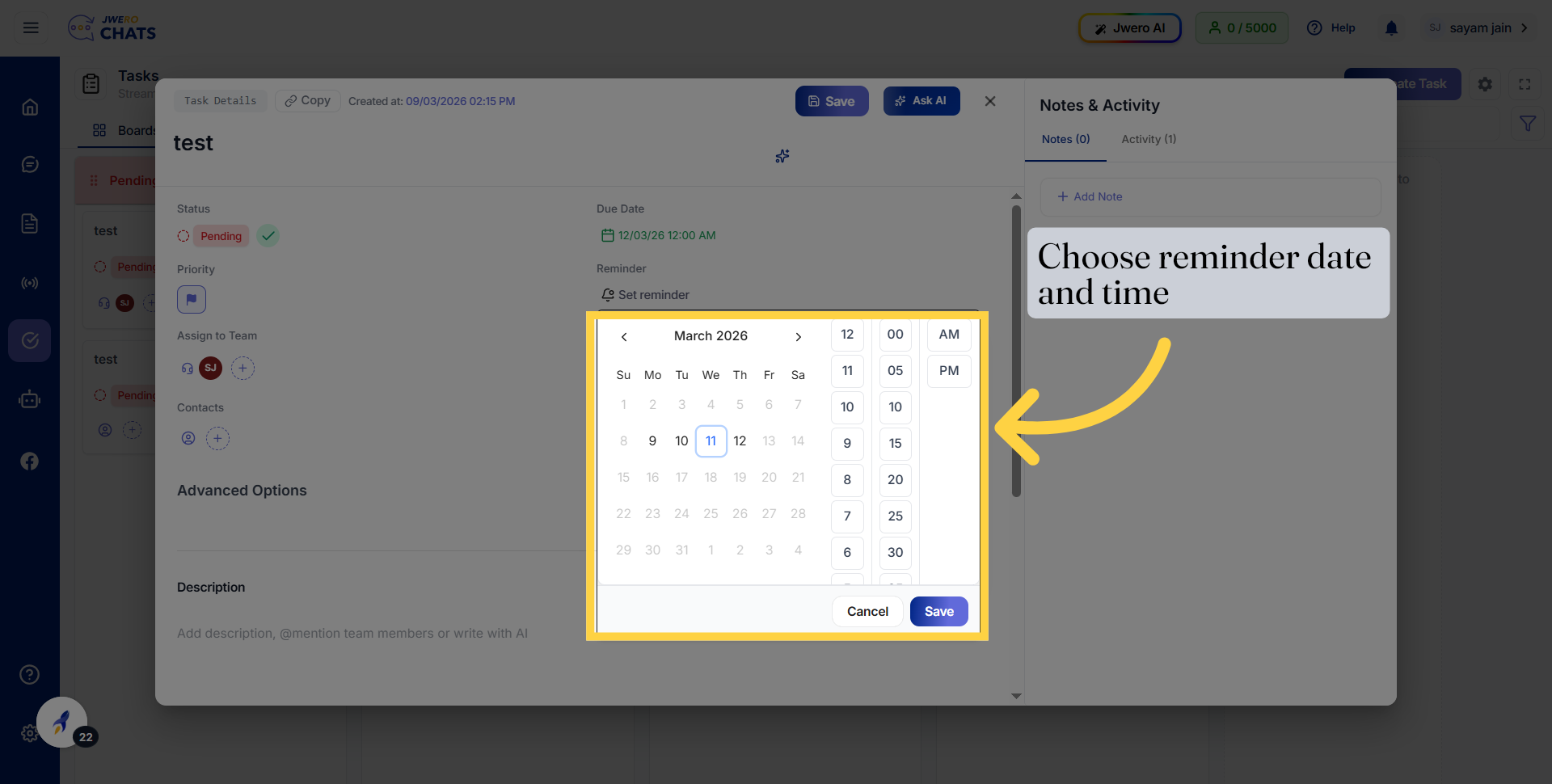
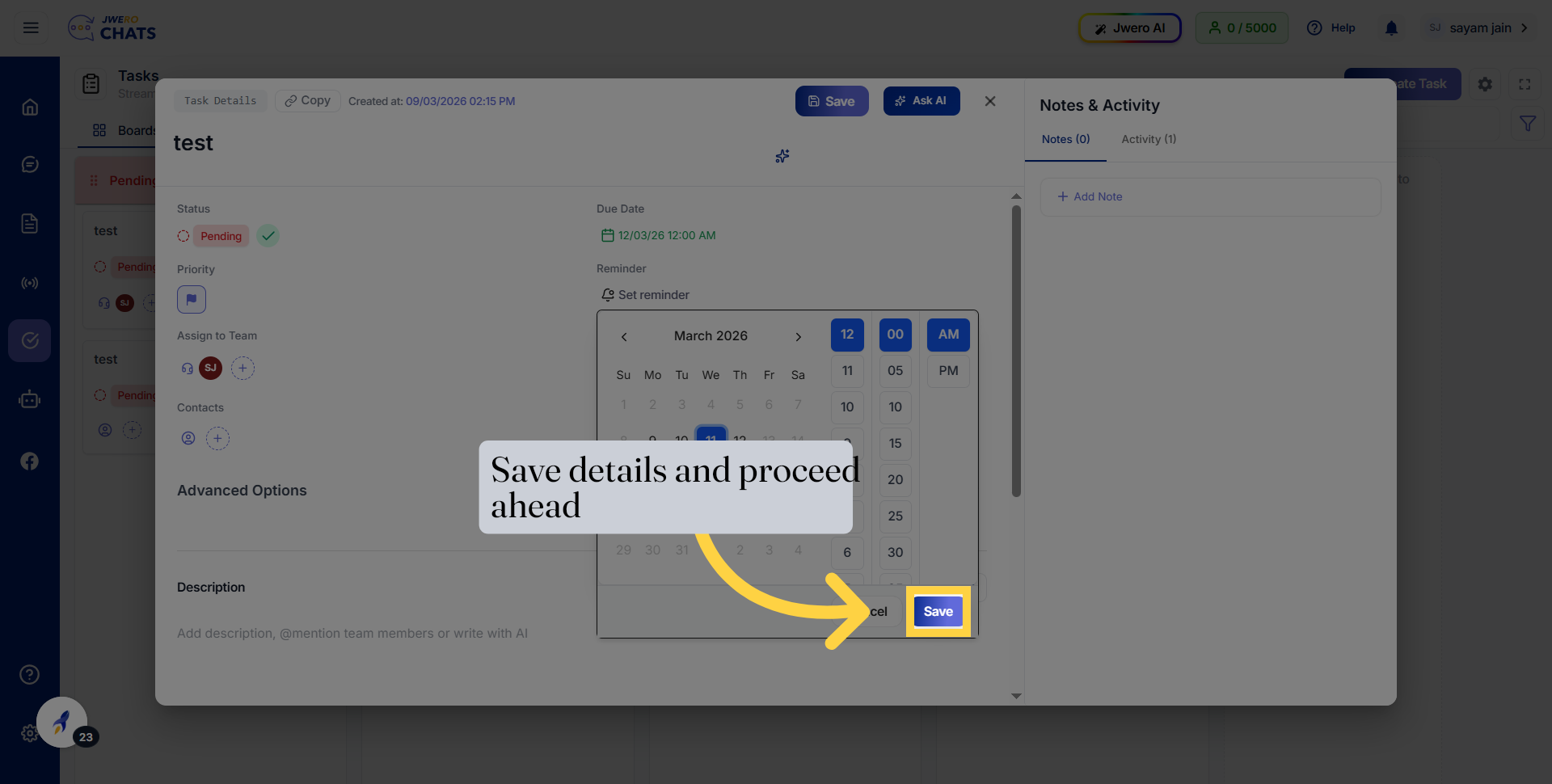
31. Save Reminder
32. You Can Create and give Label To Task
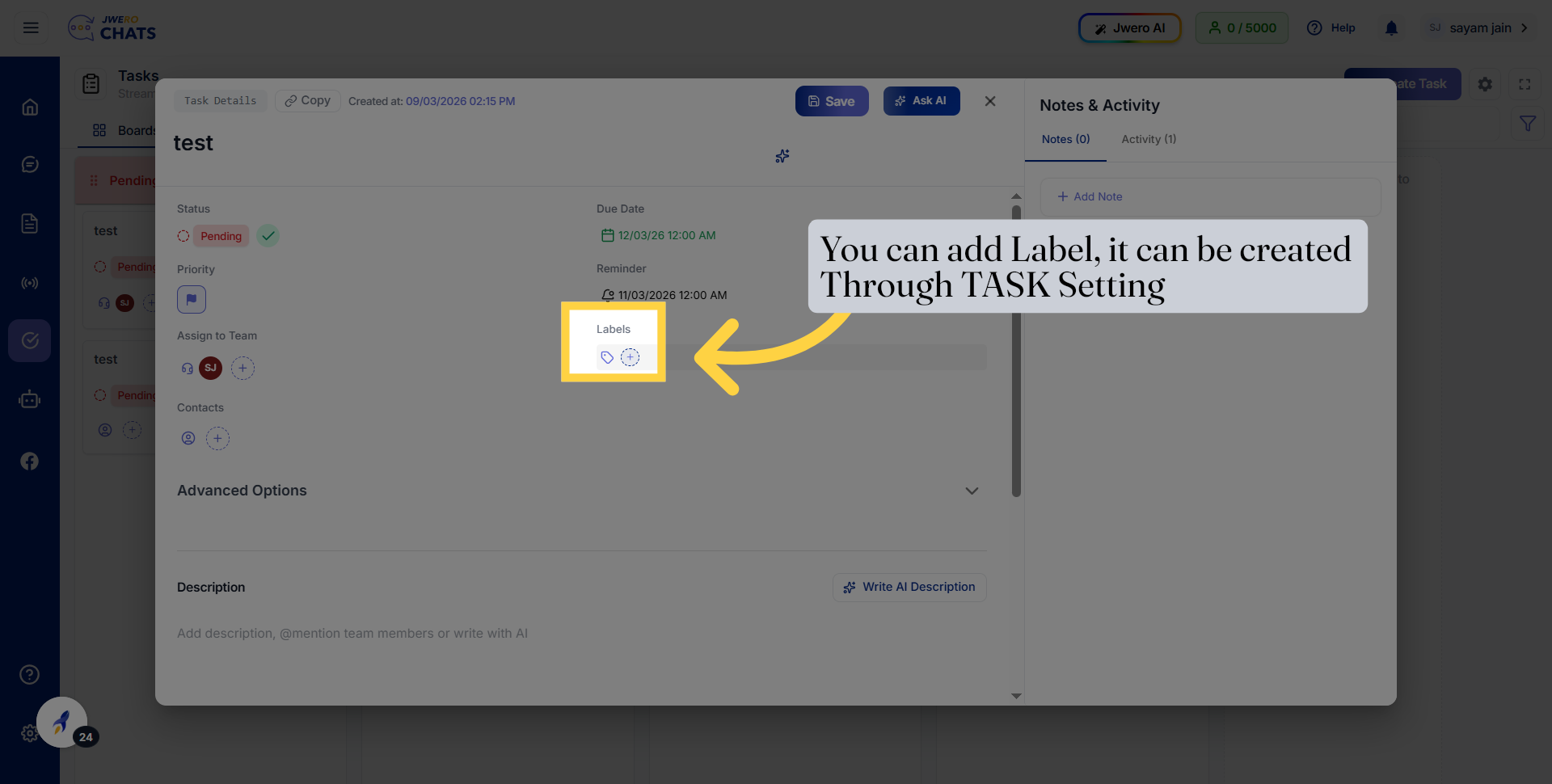
33. Search for Label
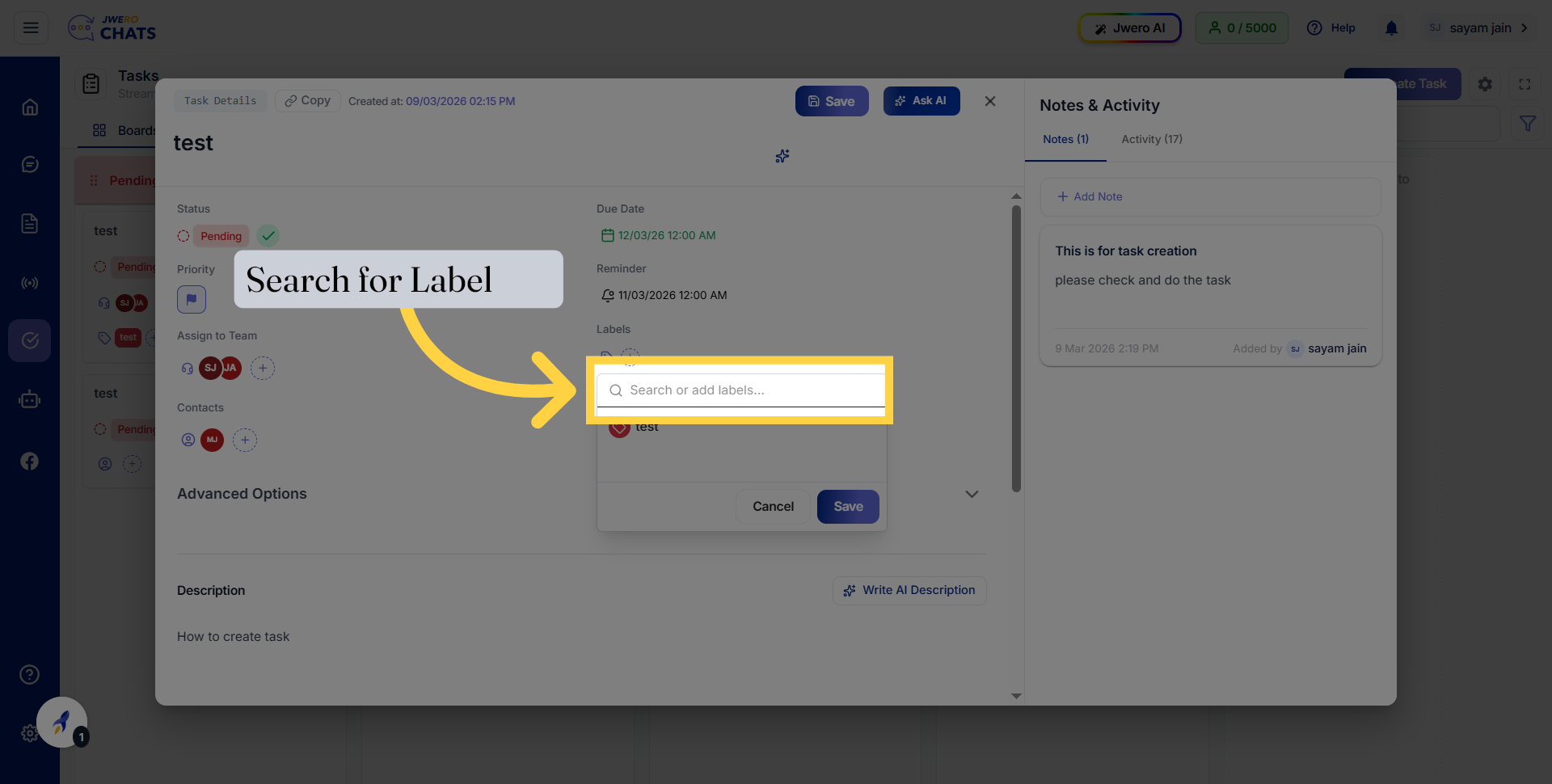
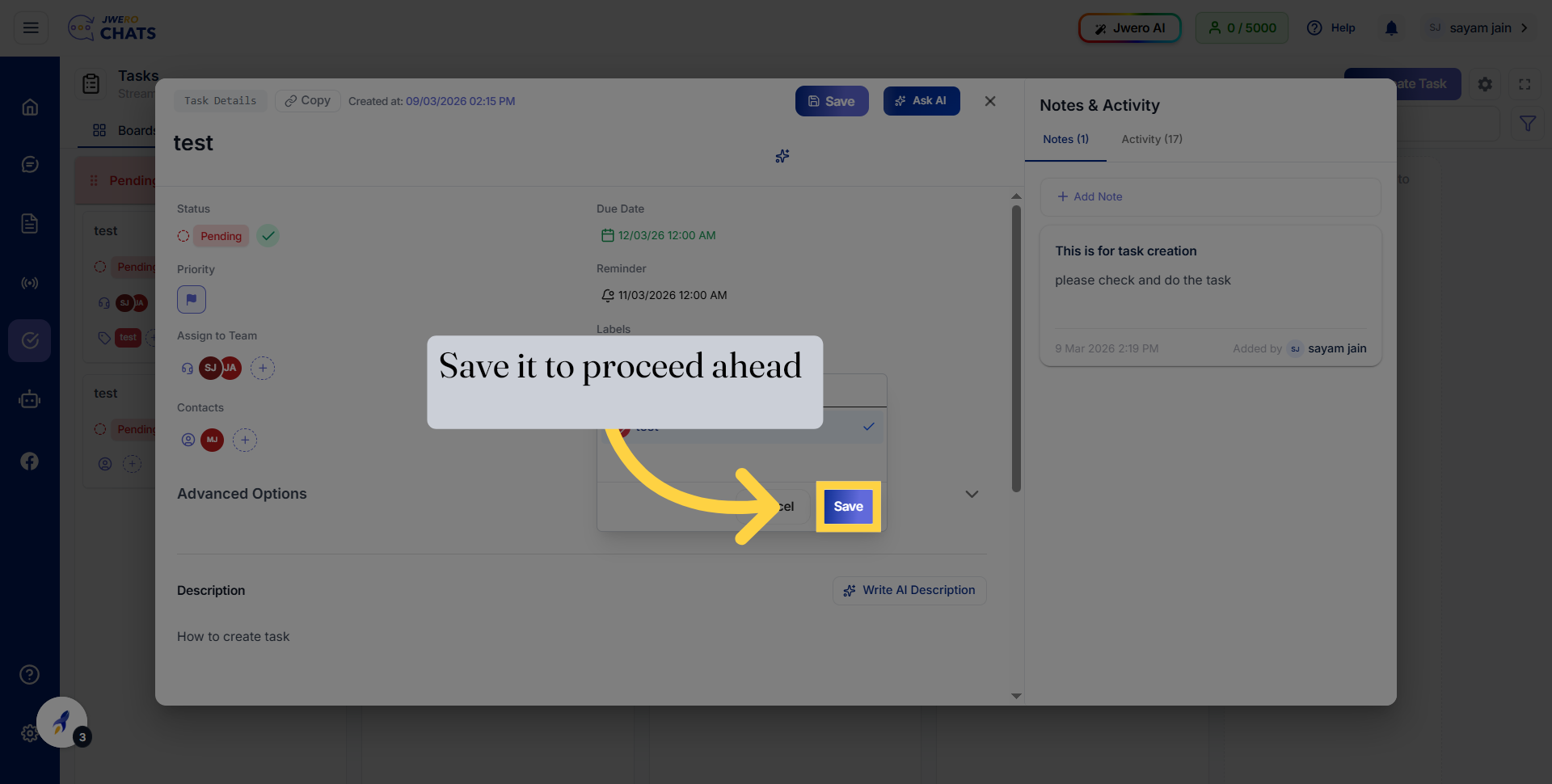
34. Select Existing Label
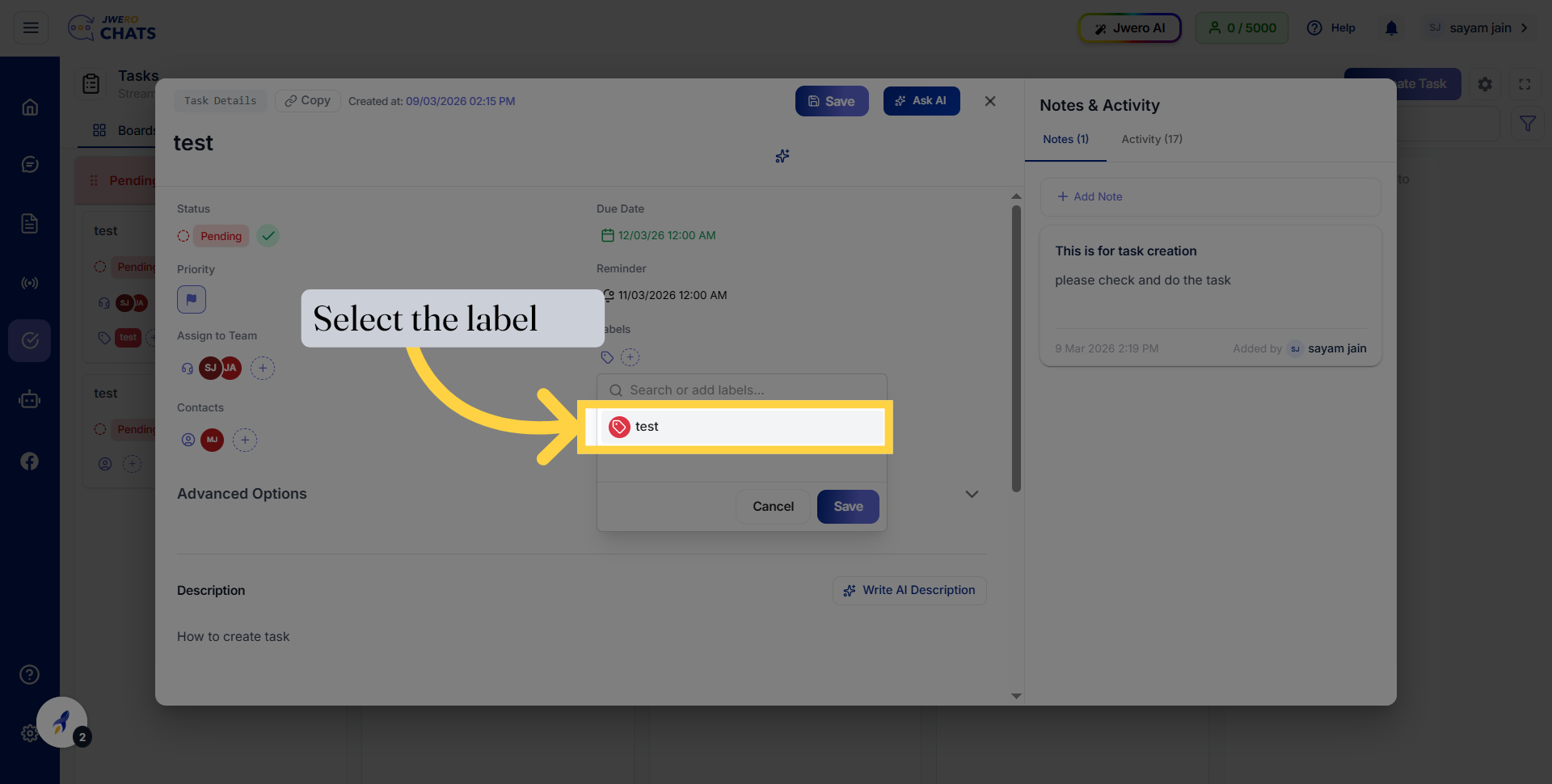
35. Save Label To Proceed Ahead
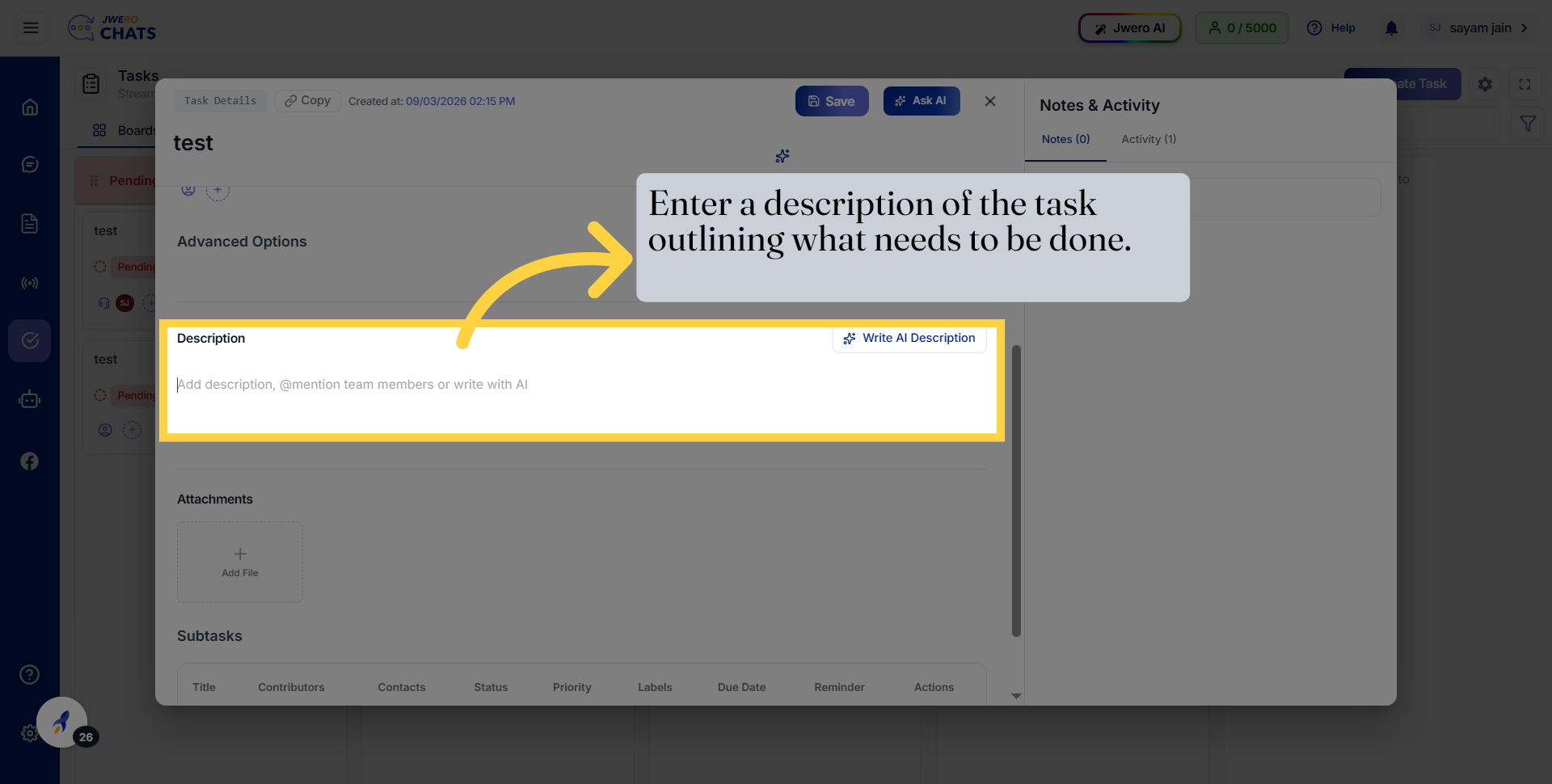
36. Add Task Description
37. Attach File to Task
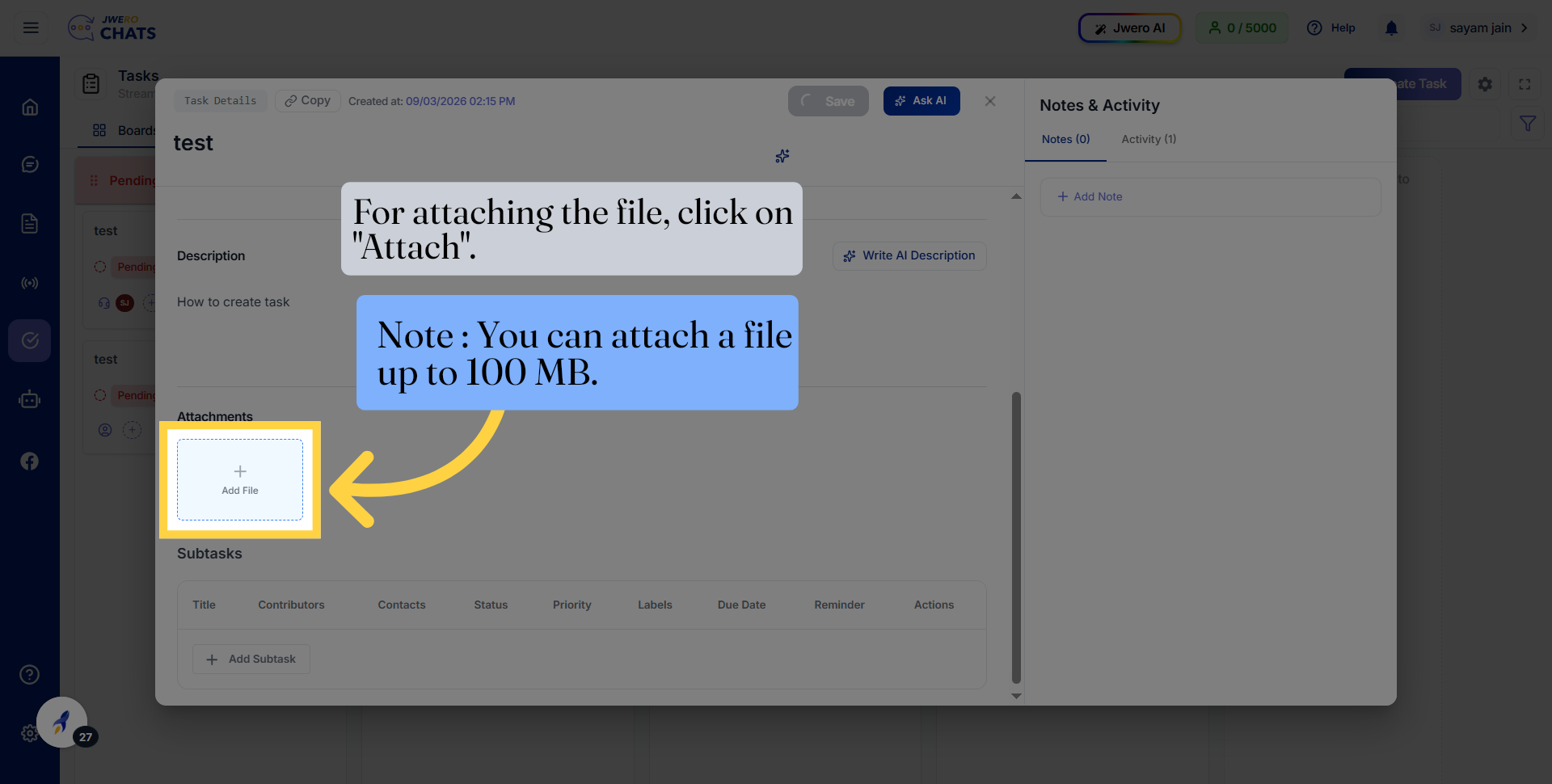
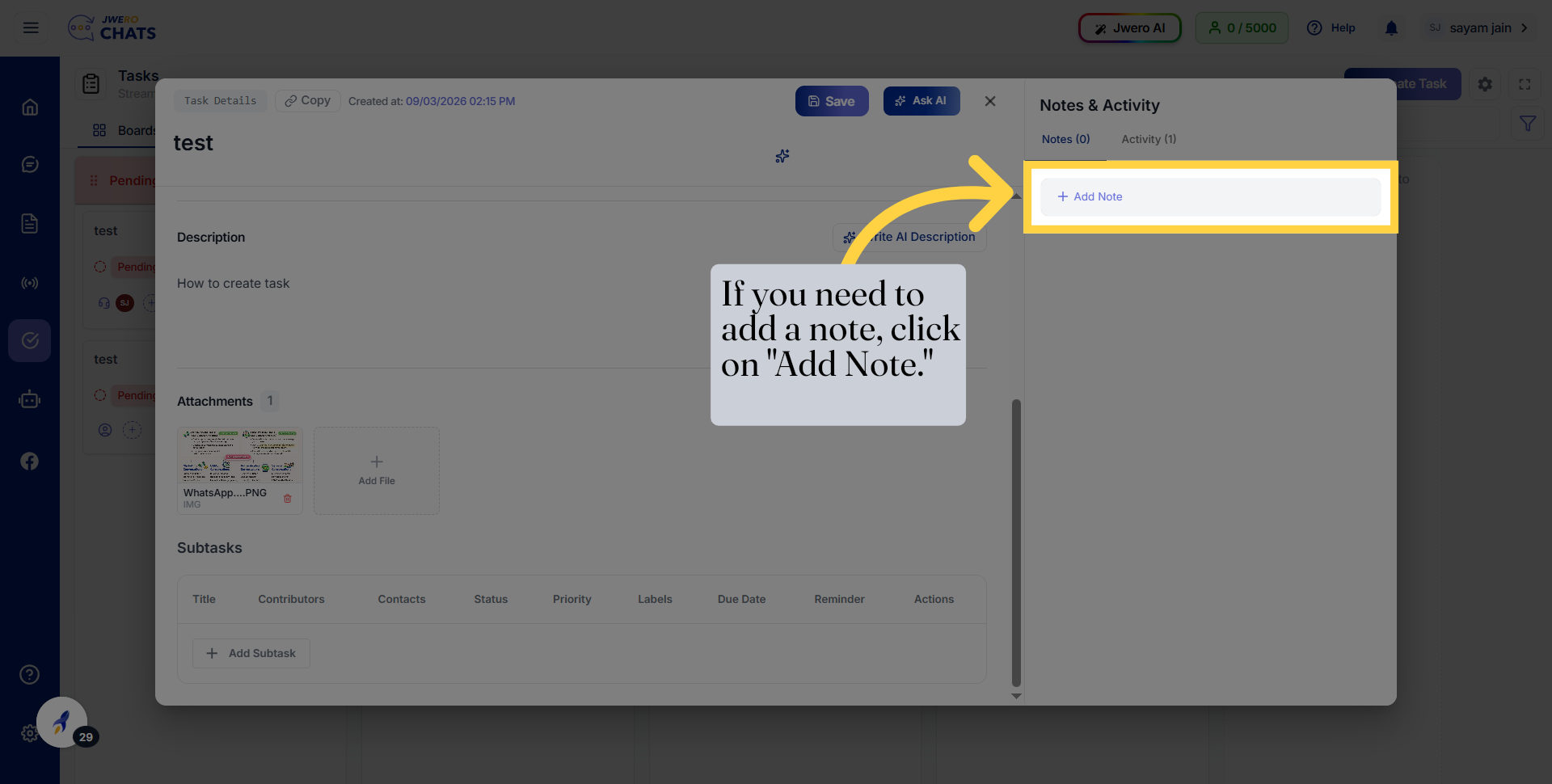
38. If You Want You Can Add Note to Task
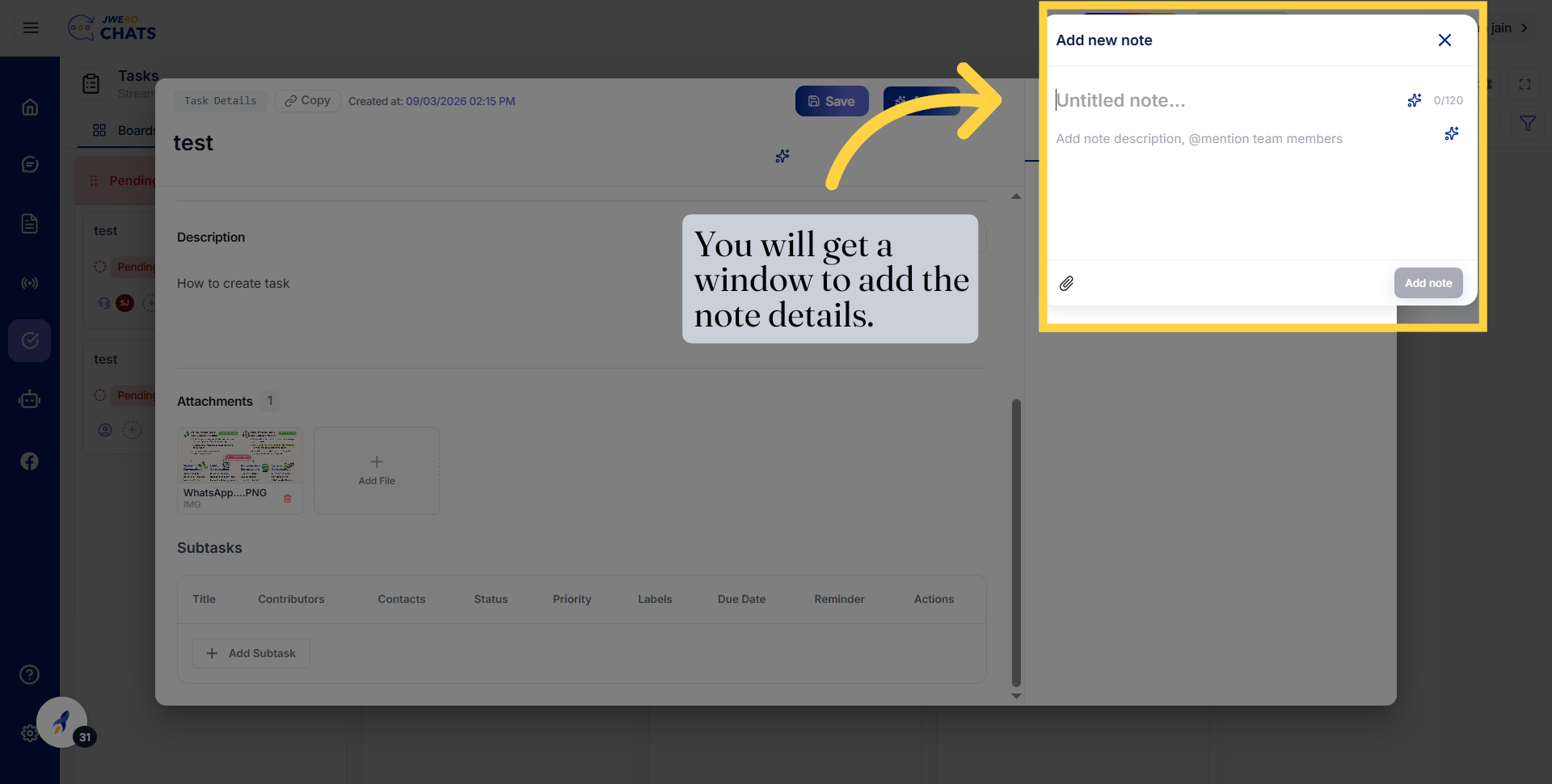
39. You Will receive Popup To Add Note
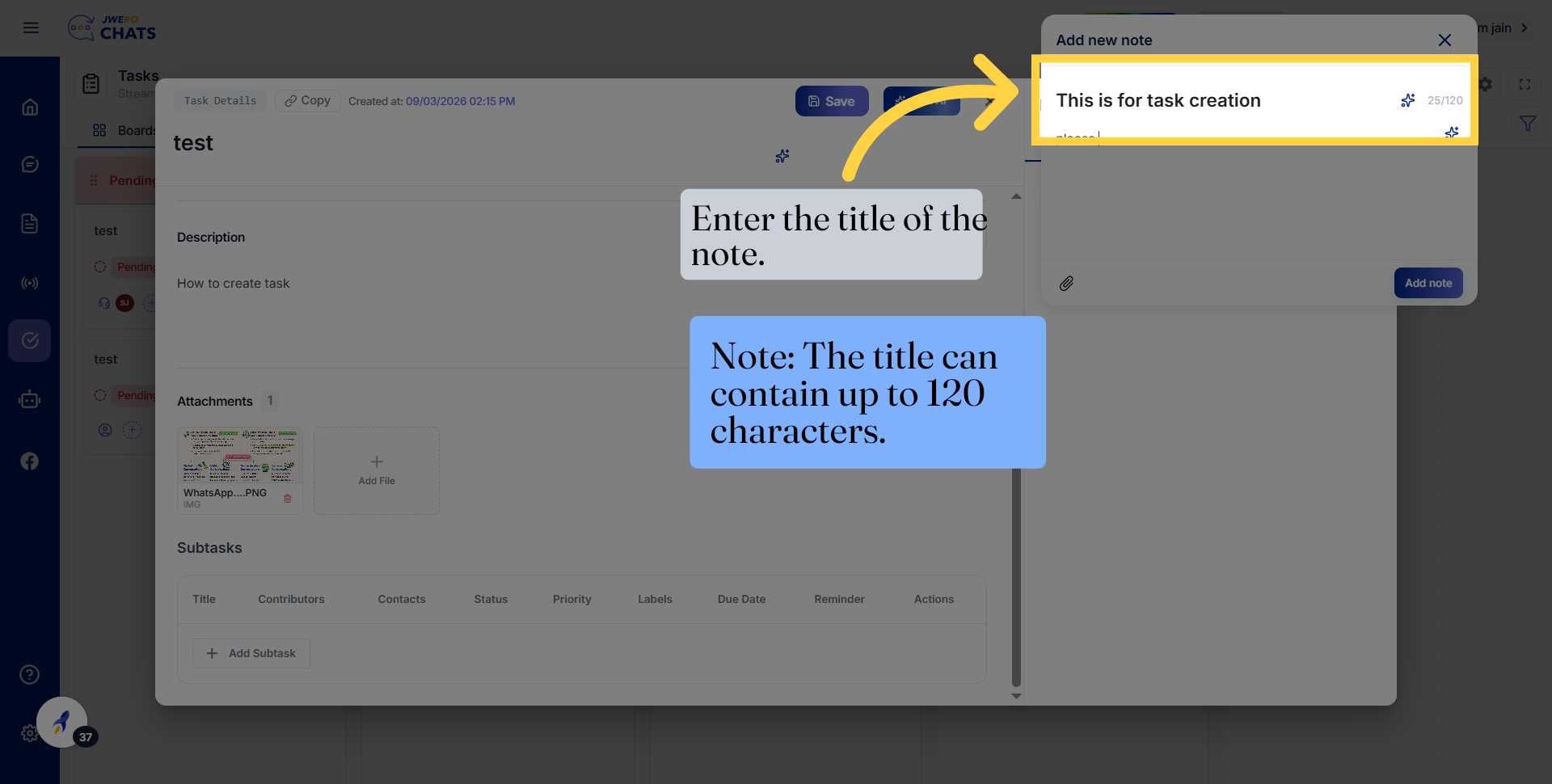
40. Select Note Title
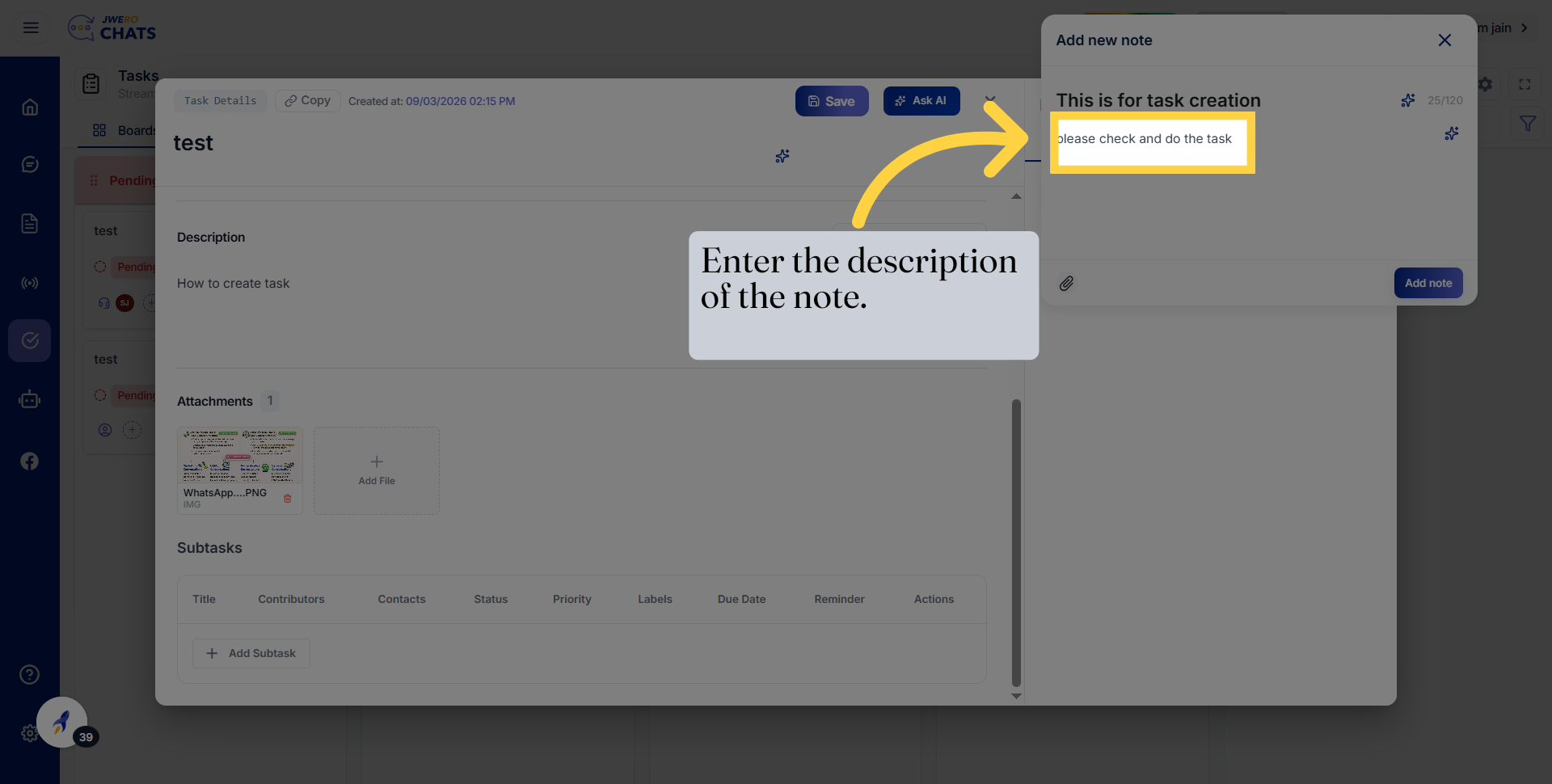
41. Give Note Description
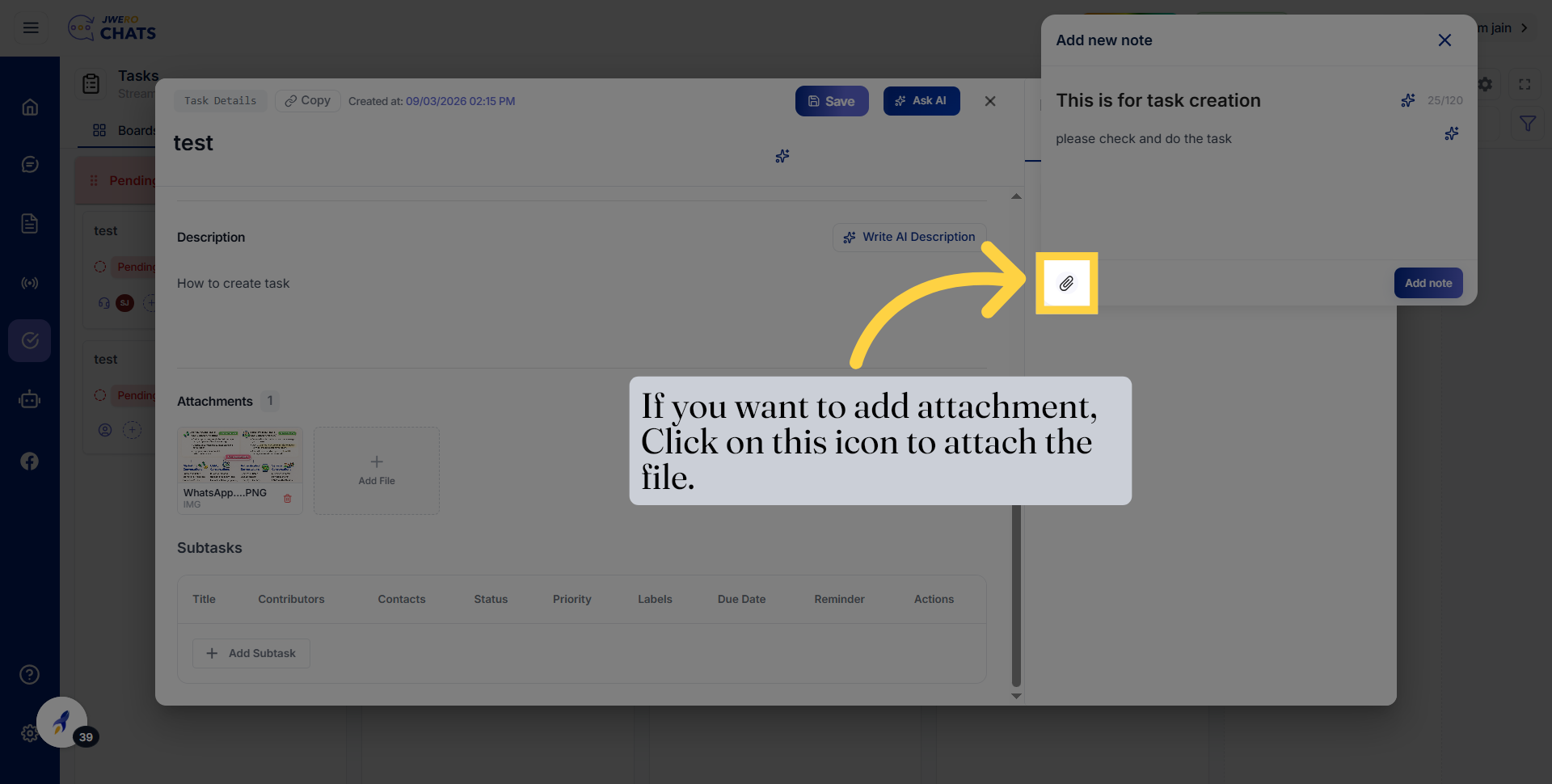
42. Give Note Attachment
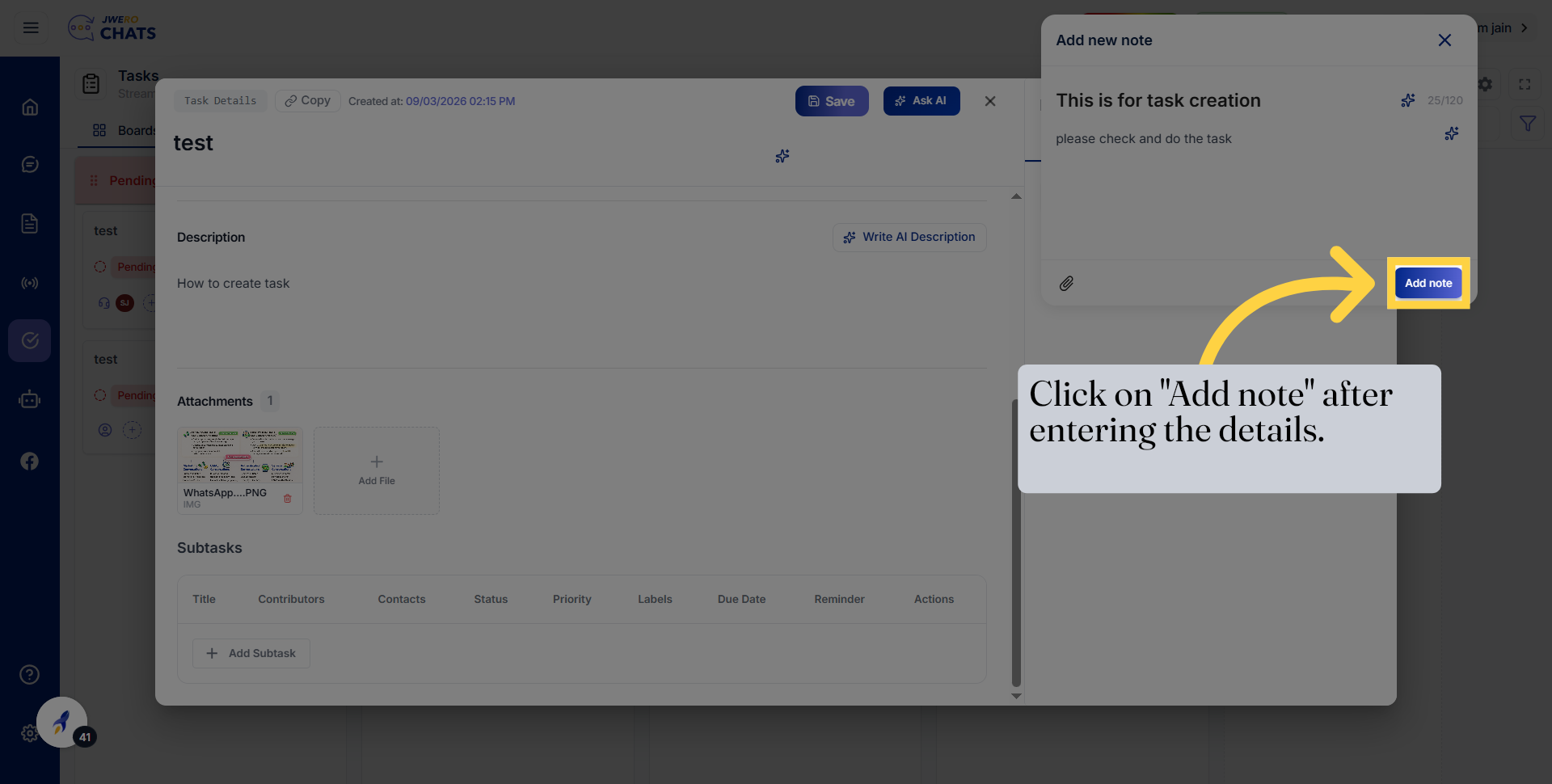
43. Add Note To Save Details
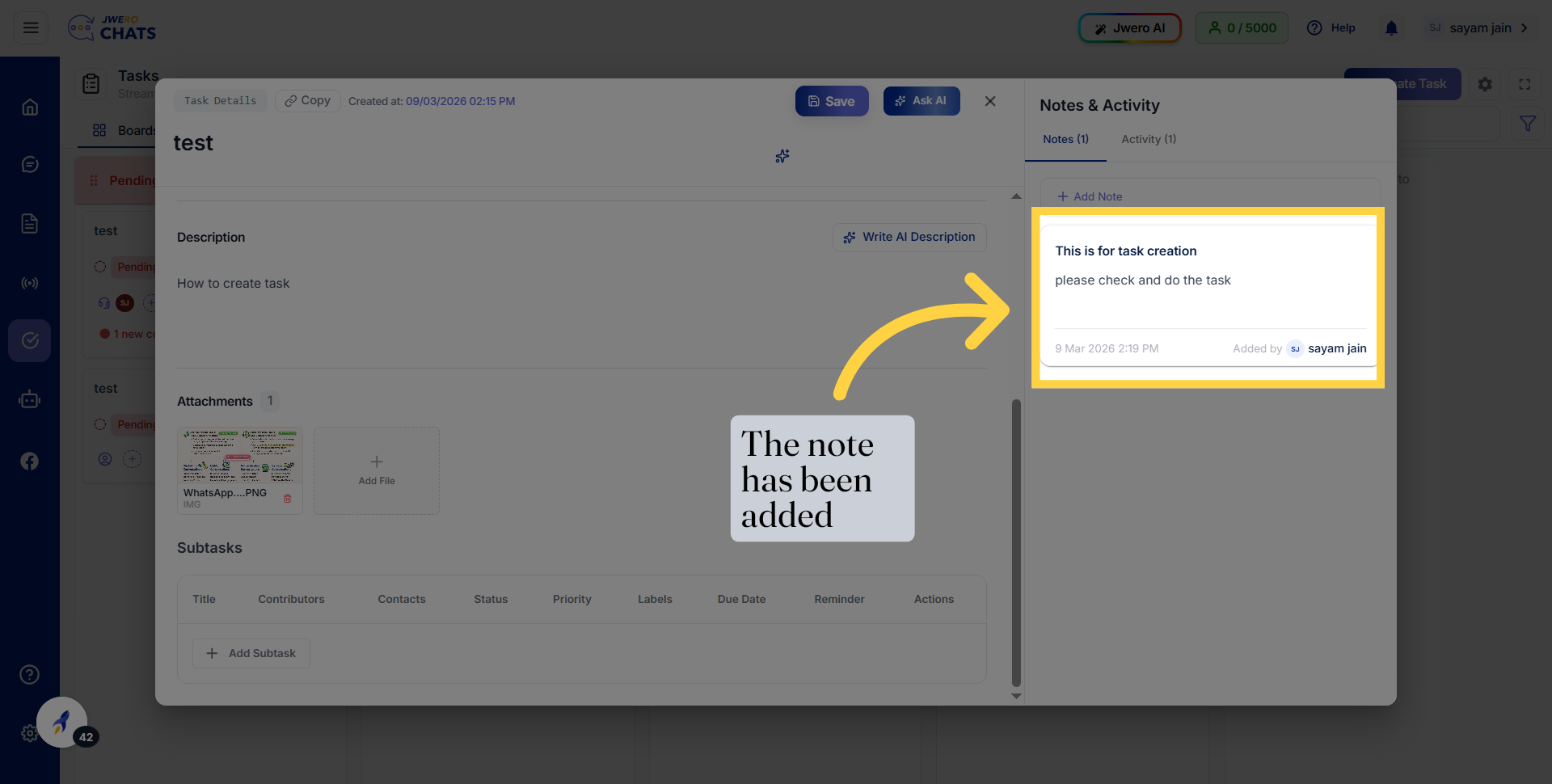
44. You Can See Note Have Been Added
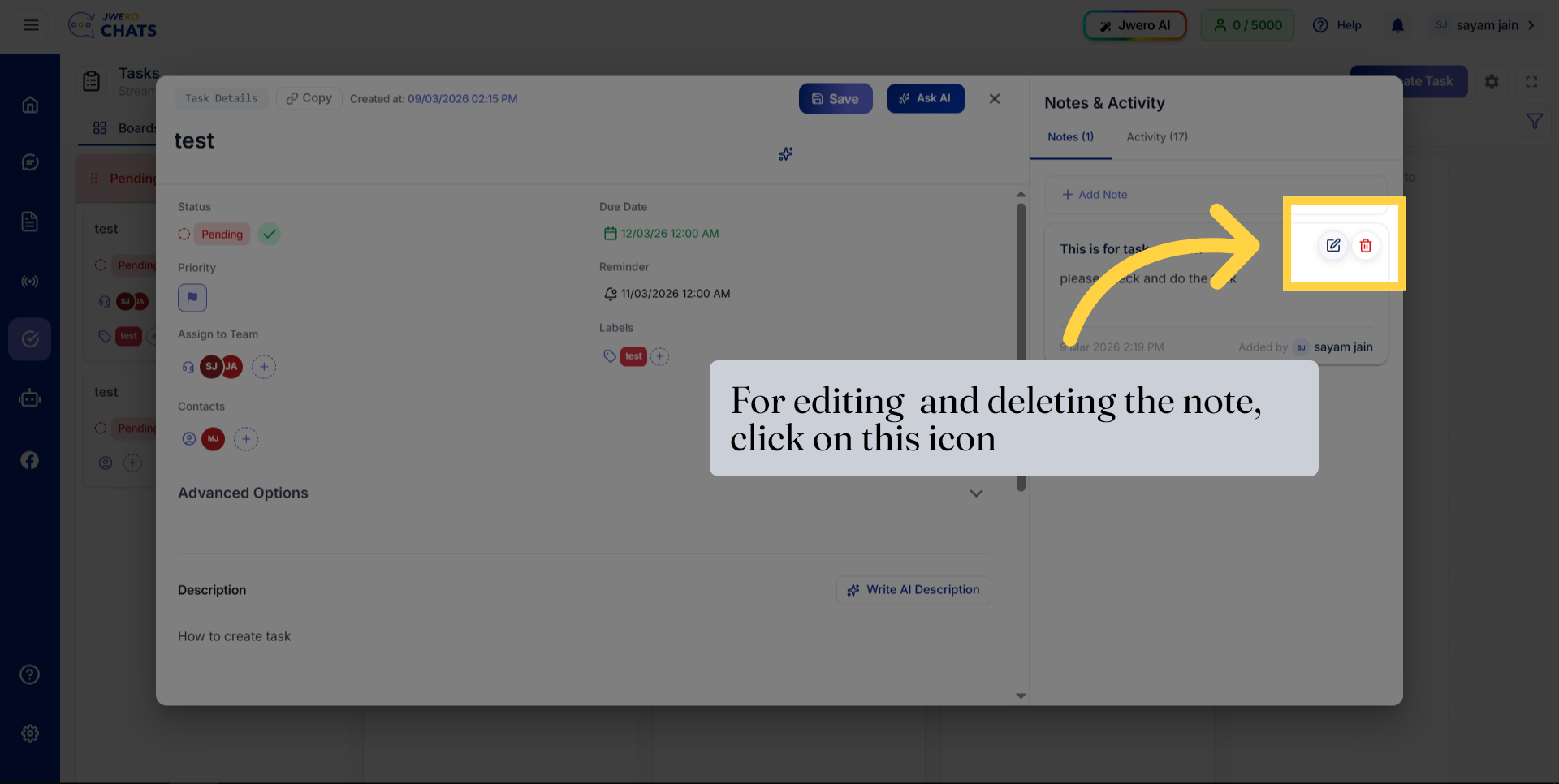
45. For editing and deleting the note, click on this icon
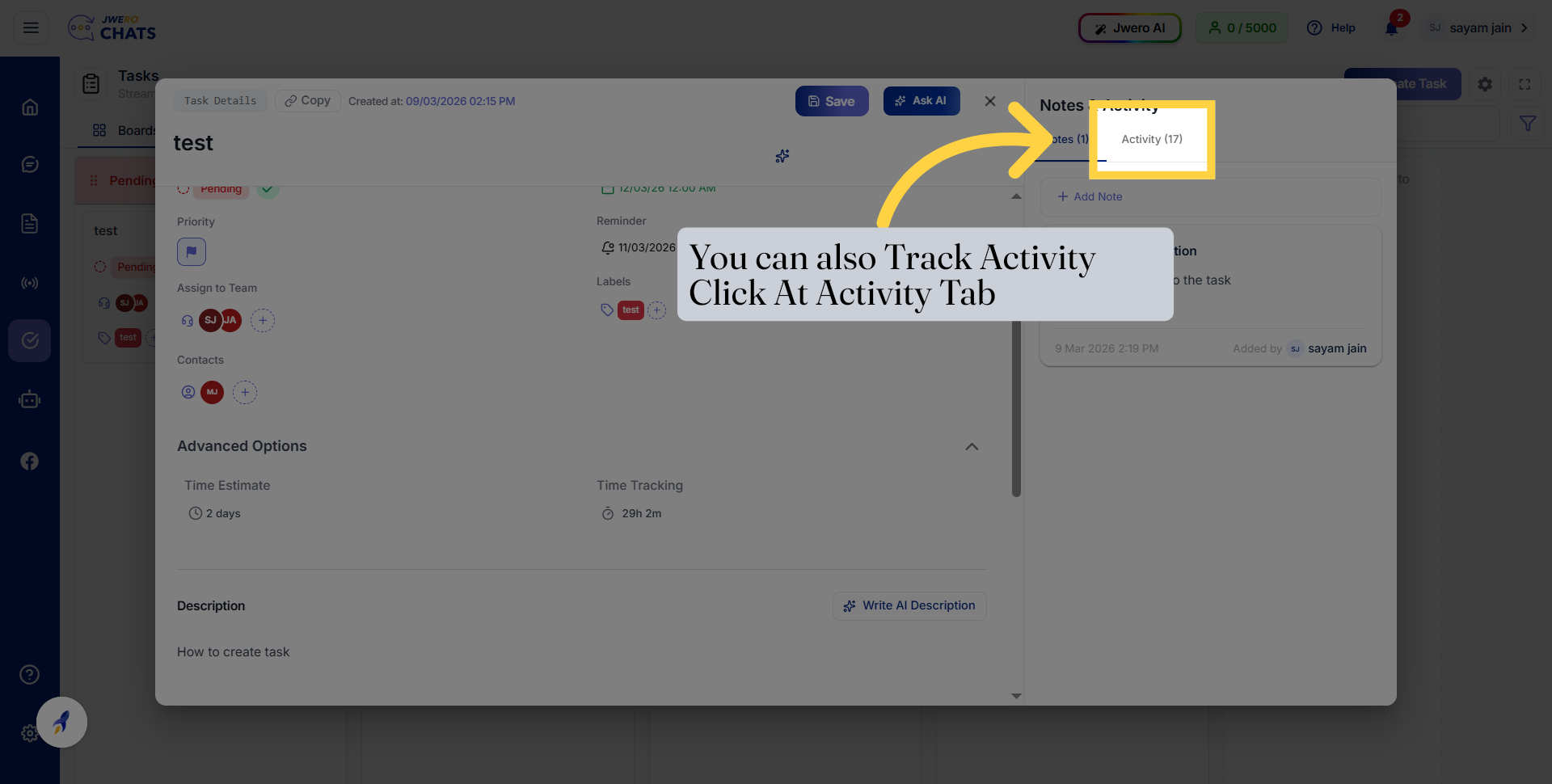
46. You Can Track Activity With Activity Tab
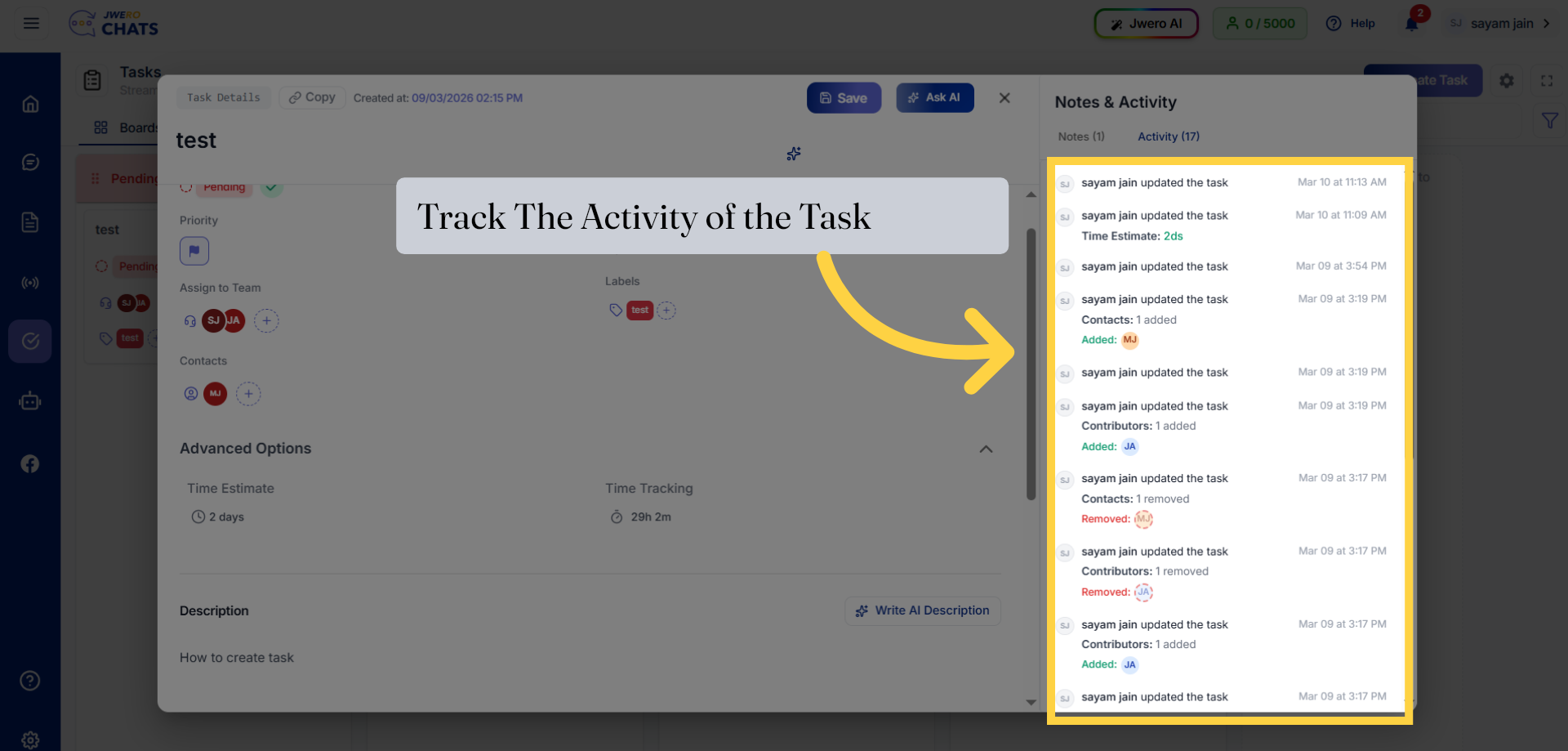
47. Track All Activity Related To Task
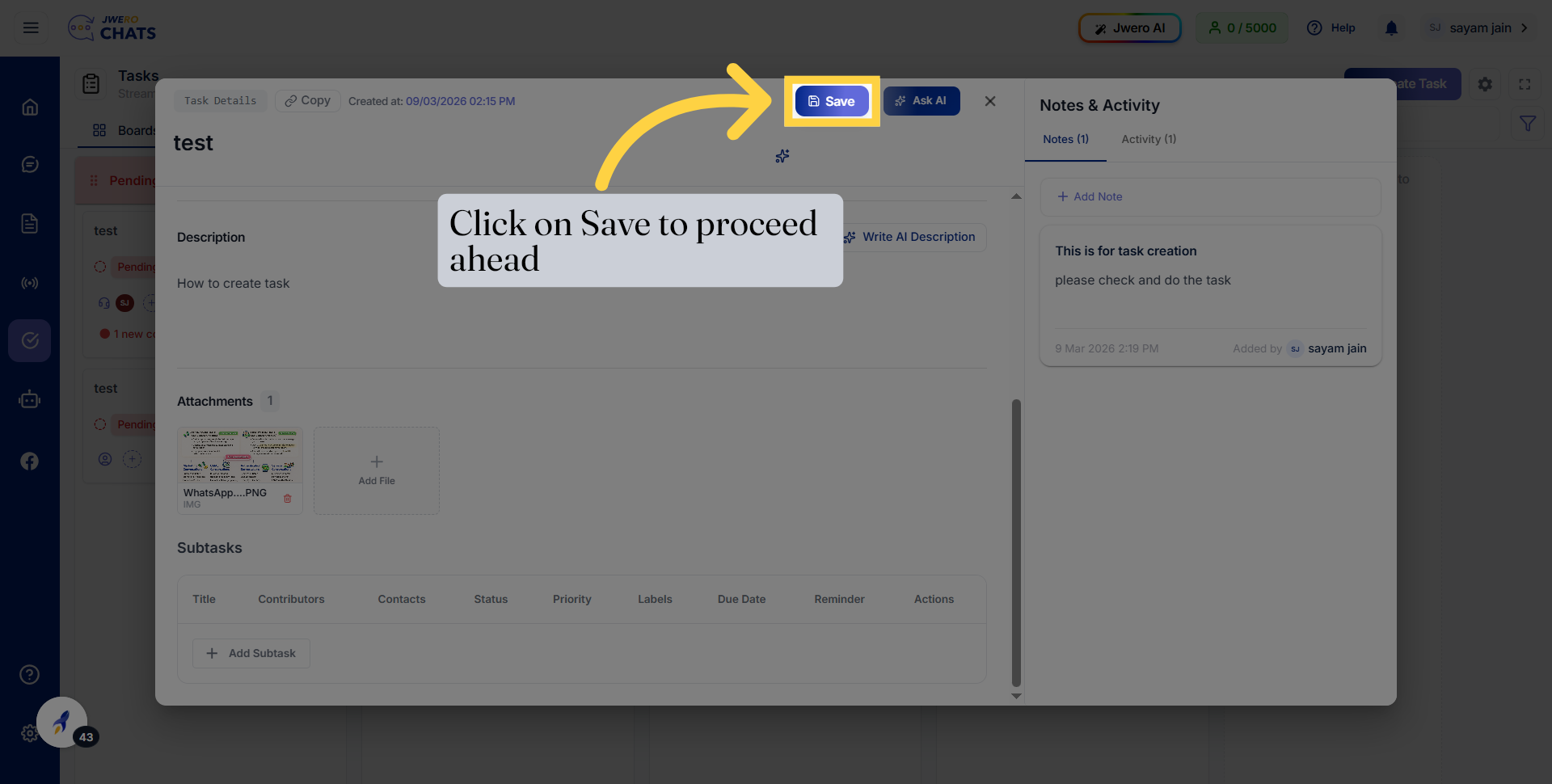
48. Save Task Changes
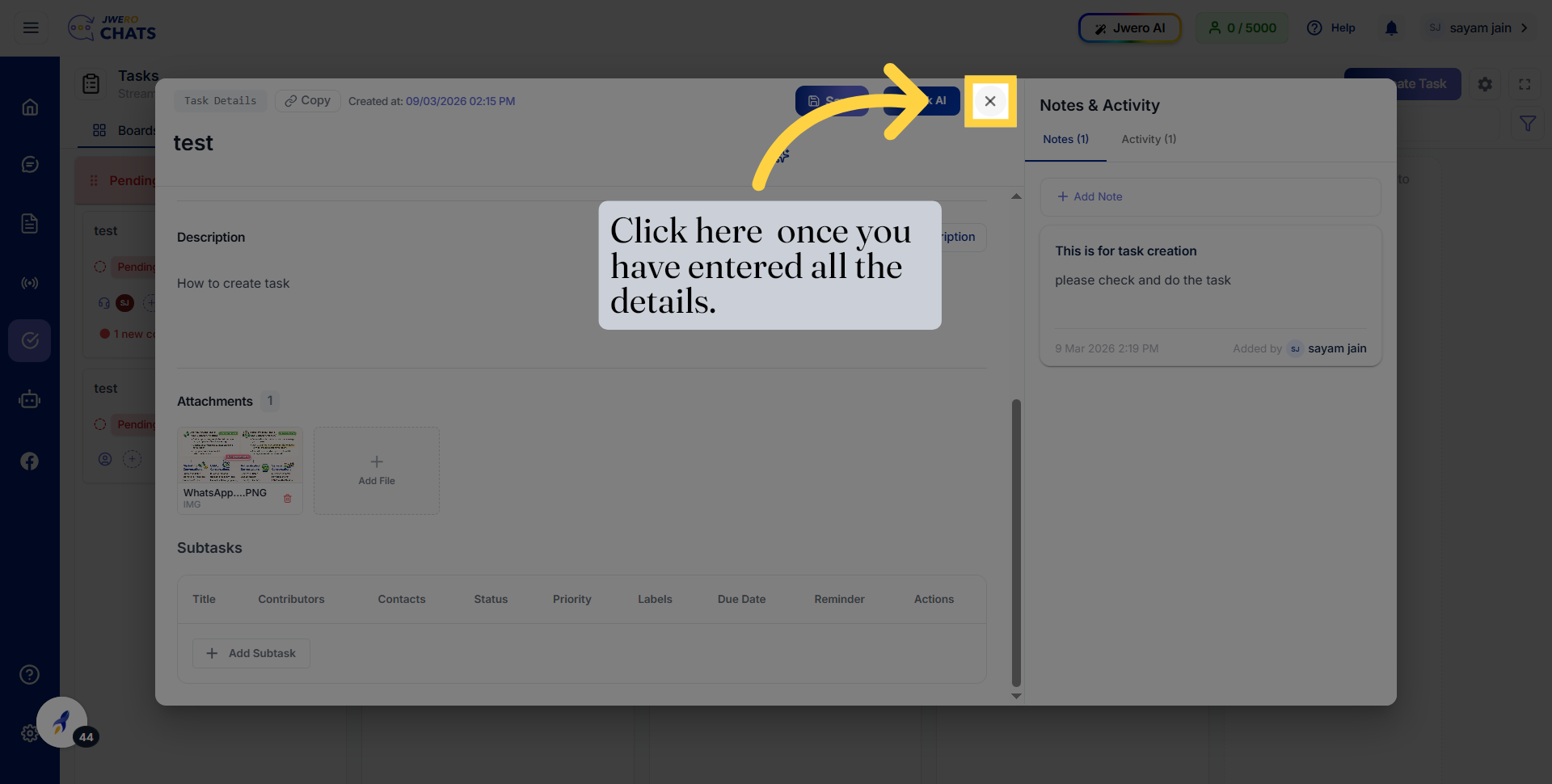
49. Click to Complete Task Setup
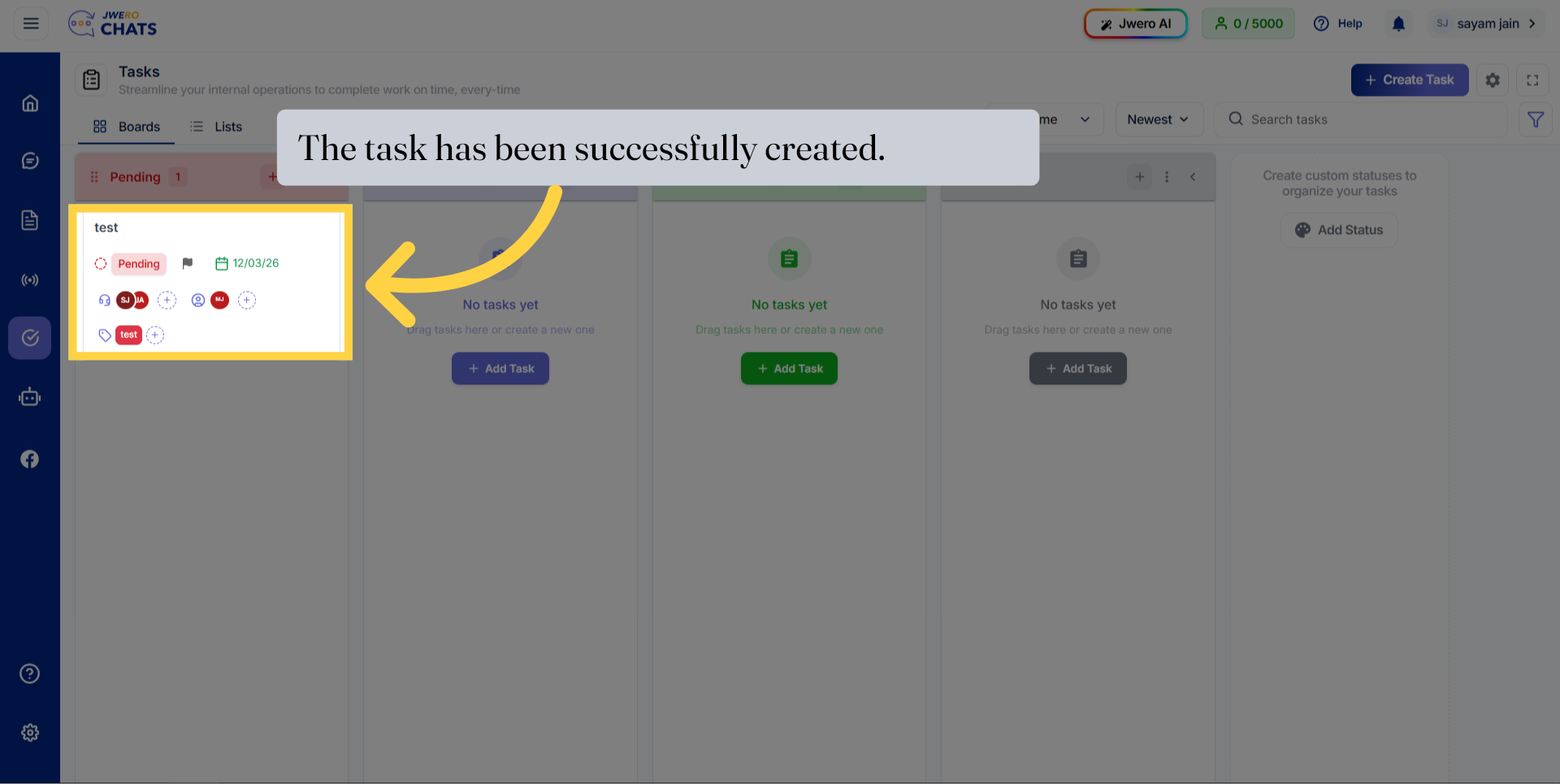
50. The task has been successfully created.